April 8, 2026
Release 24.6.0: You Can Now Make User-to-User Stable Balance Payments
In the most recent release of the Fedi app, you can make payments from your Stable Balance account to the Stable Balance account of another Fedi user.
This means that Fedi users no longer have to move their funds from Stable Balance to Bitcoin balance before making a transfer.
What is Stable Balance?
For those unfamiliar with Stable Balance, it’s a feature of the Fedi wallet that lets you maintain the value of some of your funds at a fixed fiat value.
To maintain this fixed value, the amount of bitcoin in your Stable Balance wallet automatically adjusts.
It looks like this: If the price of bitcoin increases, you will have fewer sats, while if bitcoin's price decreases, your sats balance will increase to make up for the drop in price.
For more on how to deposit and withdraw funds from and to your Stable Balance wallet, please see this article: Protect Your Bitcoin from Volatility with Stable Balance
How to Make a Payment from Your Stable Balance Wallet
Step 1: Click on the wallet icon in the bottom left corner of the screen. To select the wallet service you’d like to use, click on the three parallel lines at the top right corner of the screen.
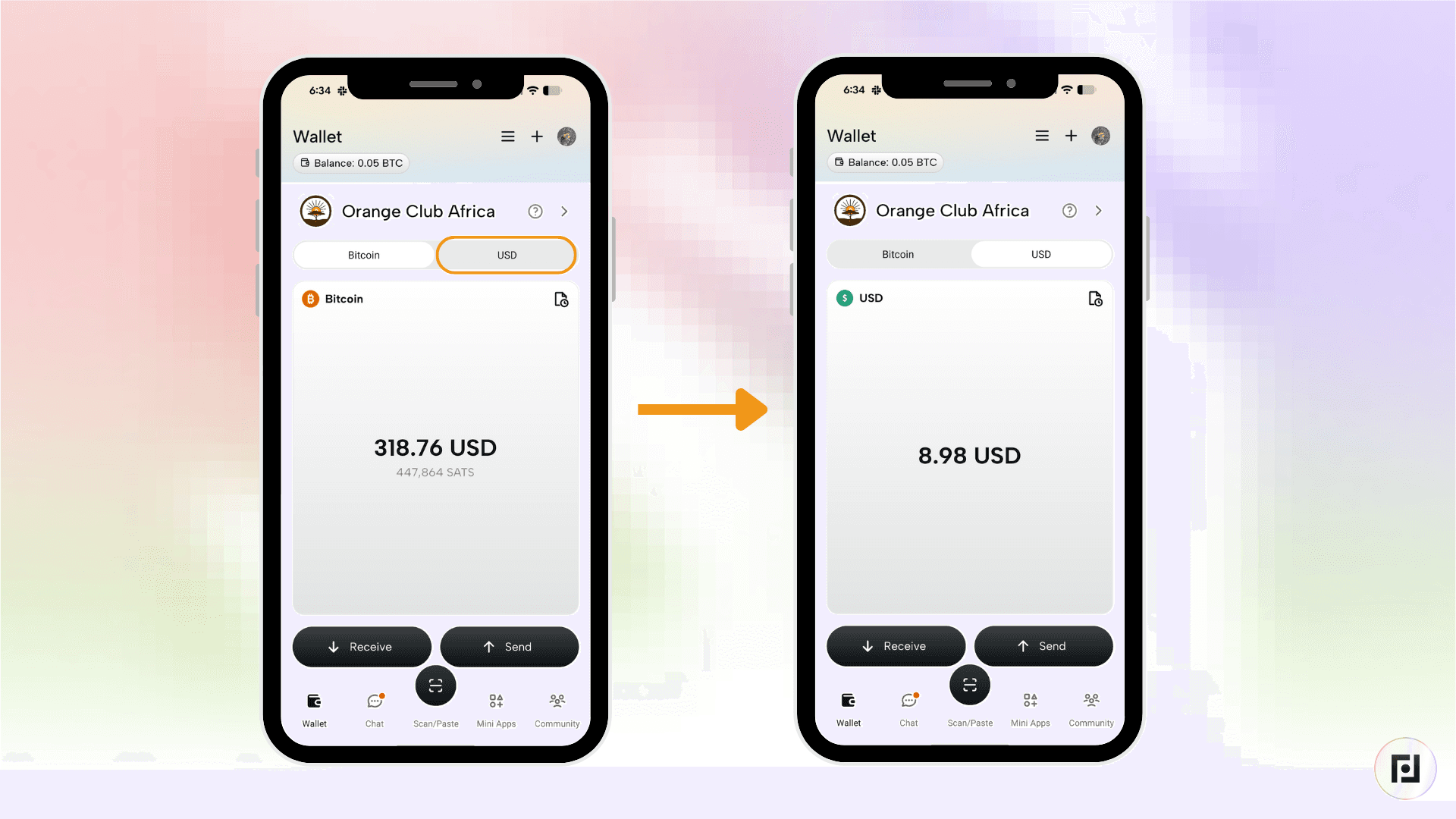
Step 2: Select the “USD” option on the wallet of your choice.
Step 3: Click the “Send” button, then click “To User” from the toggle bar at the top of the screen.
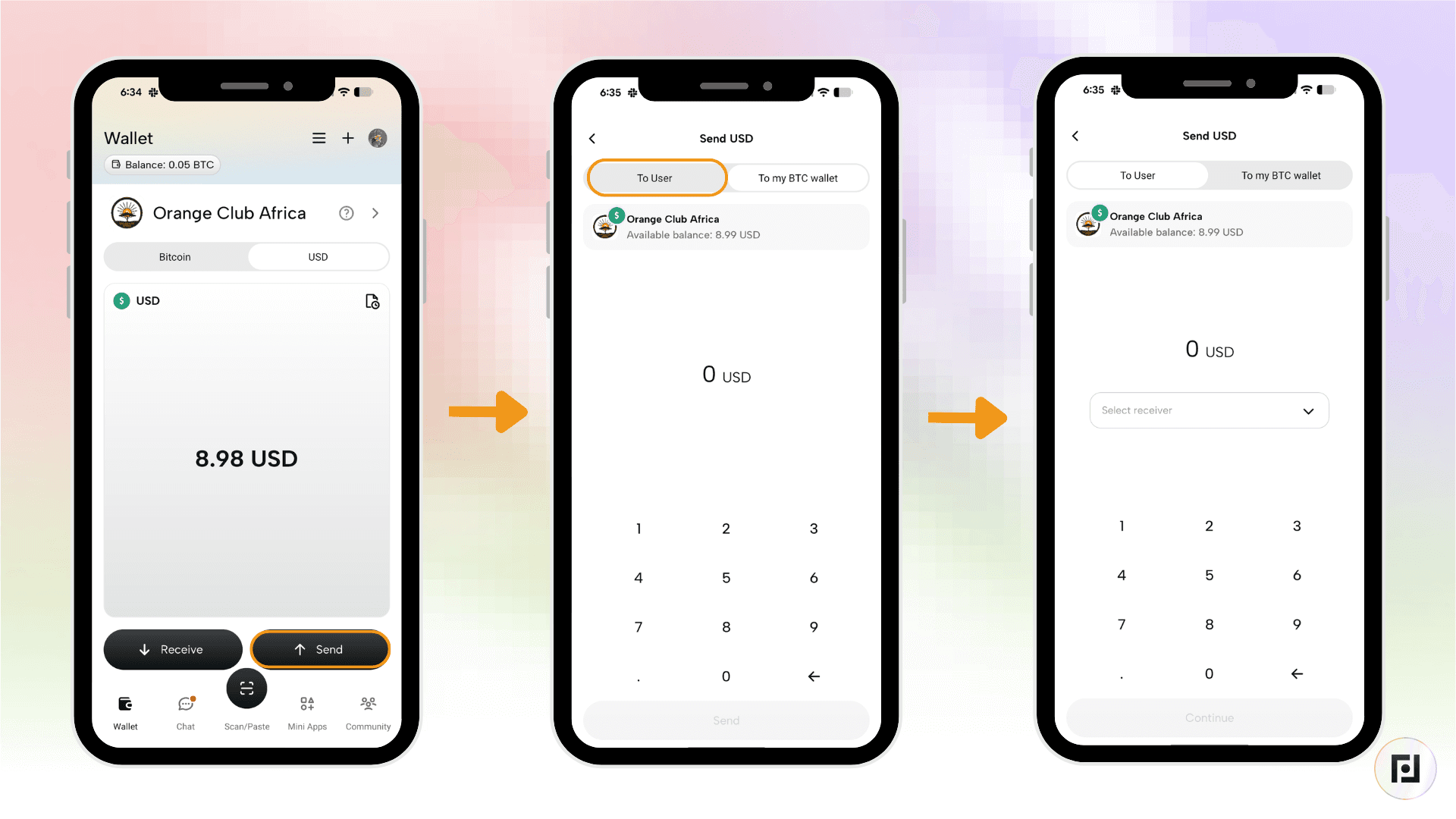
Step 4: Click the bar with the “Select receiver” text inside and either select who you’d like to send to from your contacts or input the user you’d like to pay. You can scan a user’s QR code to add them. Enter the amount and click on “Continue”.
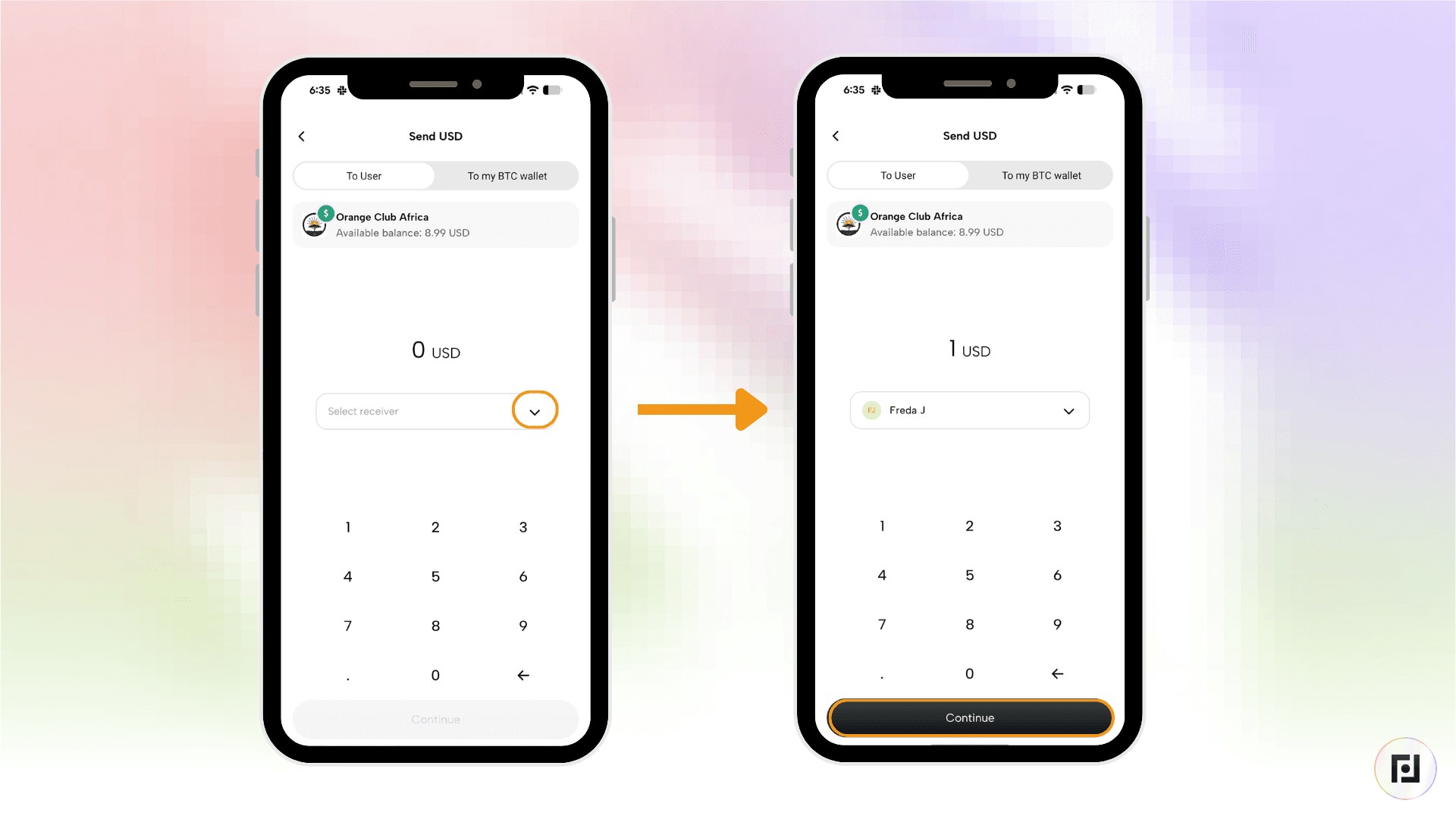
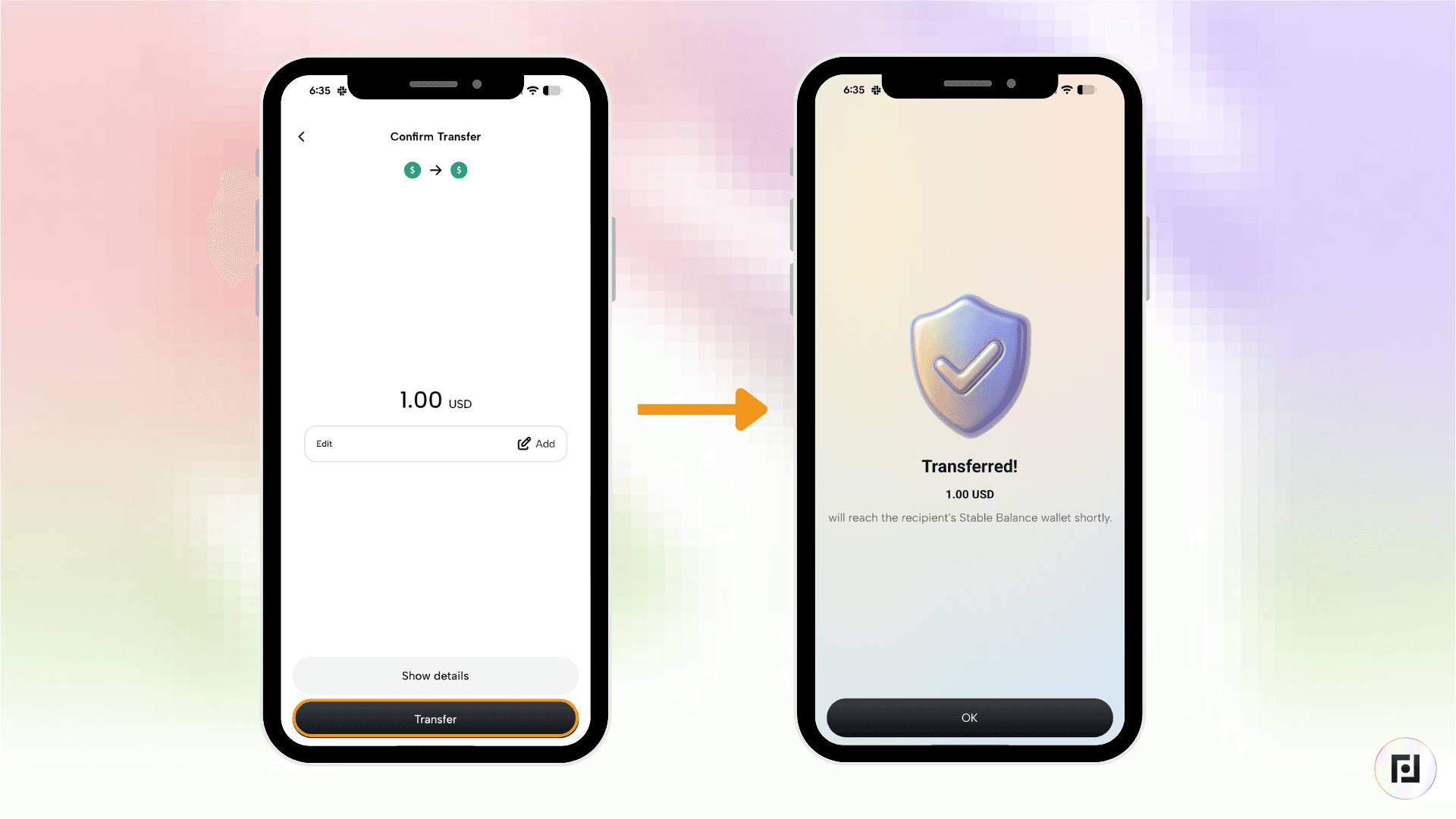
Step 5: Input the dollar amount you’d like to send. Add a note if you’d like and then click the “Transfer” button.
How to Receive a Payment with Your Stable Balance Wallet
Step 1: Click on the wallet icon in the bottom left corner of the screen. To select the wallet service you’d like to use, click on the three parallel lines at the top right corner of the screen.
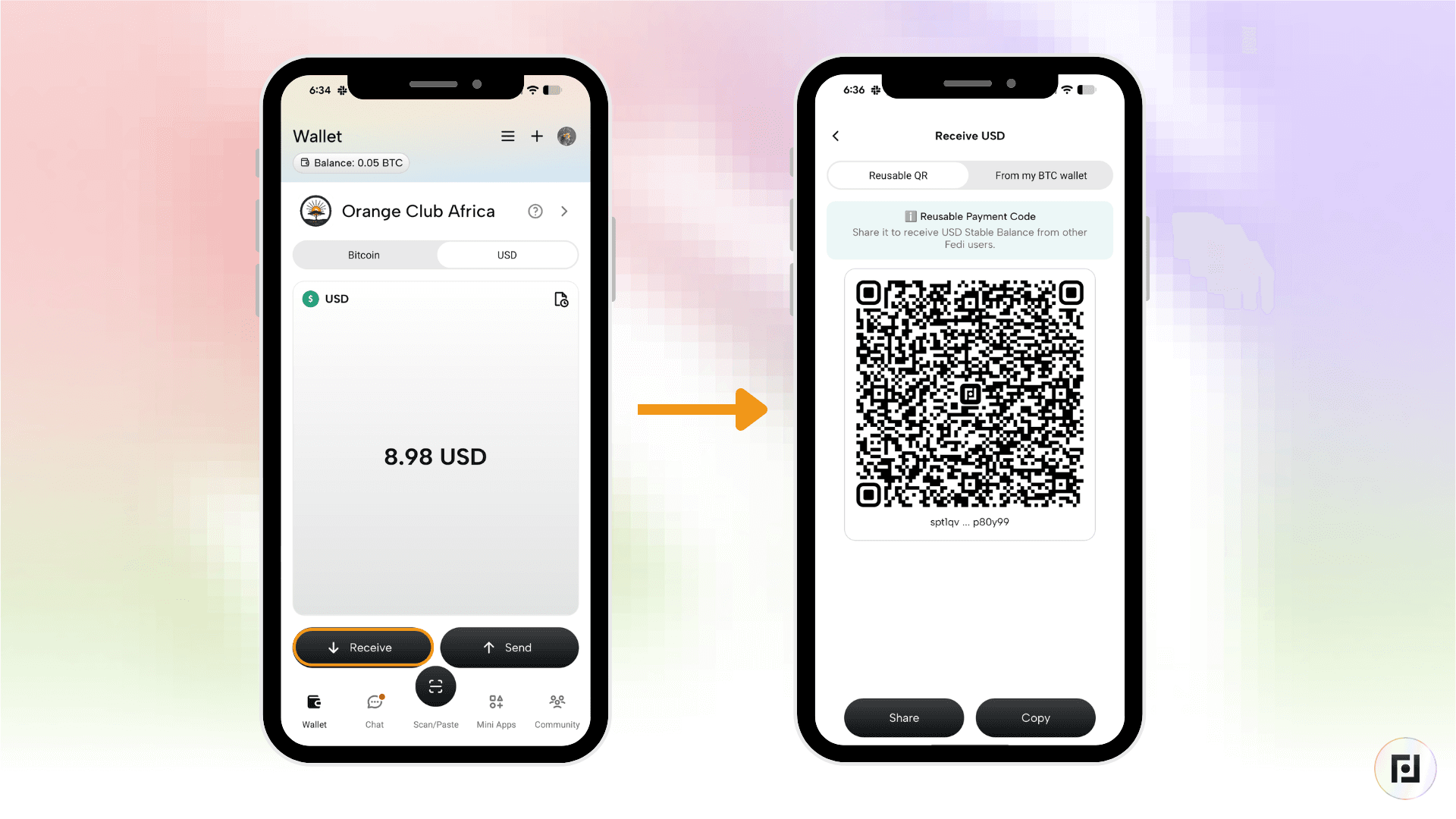
Step 2: Click the “Receive” button. This will reveal a “Reusable QR”. Click “Share” or “Copy” and then proceed to share the QR code with your contact.