
January 26, 2026
Release 26.1.1: Personalise Your Mini App Experience
We’ve introduced new updates to the Mini Apps experience! Now you can rearrange your Mini Apps to match how you use your favorite web apps, and we've made it easier to add and remove Mini Apps to further personalize your space on Fedi. This release also includes UI improvements on Mini Apps and bug fixes across the app.
What Are Mini Apps?
Mini Apps are websites you can add to your Fedi app to expand its functionality. These Mini Apps can range from AI and productivity tools like PPQ and LNCal to websites you can use to onramp and offramp in different currencies like Cashwyre or Minmo.
You can add any website as a Mini App on Fedi, or explore suggested Fedi Mini Apps from our curated list in the Mini Apps Catalog.
What’s in this release?
Your most-used tools should be the easiest to access.
In the past, your personal Mini Apps were arranged based on when they were last added. This meant that you had to scroll all the way to the bottom to access your most frequently used Mini App.
With Release 26.1.1, you can now drag and drop your favorite Mini App in the order you want it to be. Drag. Drop. Done.
We also wanted to make it easier for you to add and remove Mini Apps directly from your list. We went from having you copy and paste Mini Apps from the Catalog to adding the Mini App of your choice with a single click. As for removing Mini Apps, you no longer need to navigate outside the Mini Apps page to get that done.
You can customise your Mini App experience today – update or download Fedi to try these features.
Let’s walk you through how the new update to Mini Apps works.
How to Rearrange Your Mini Apps
Organizing your personal Mini Apps is simple:
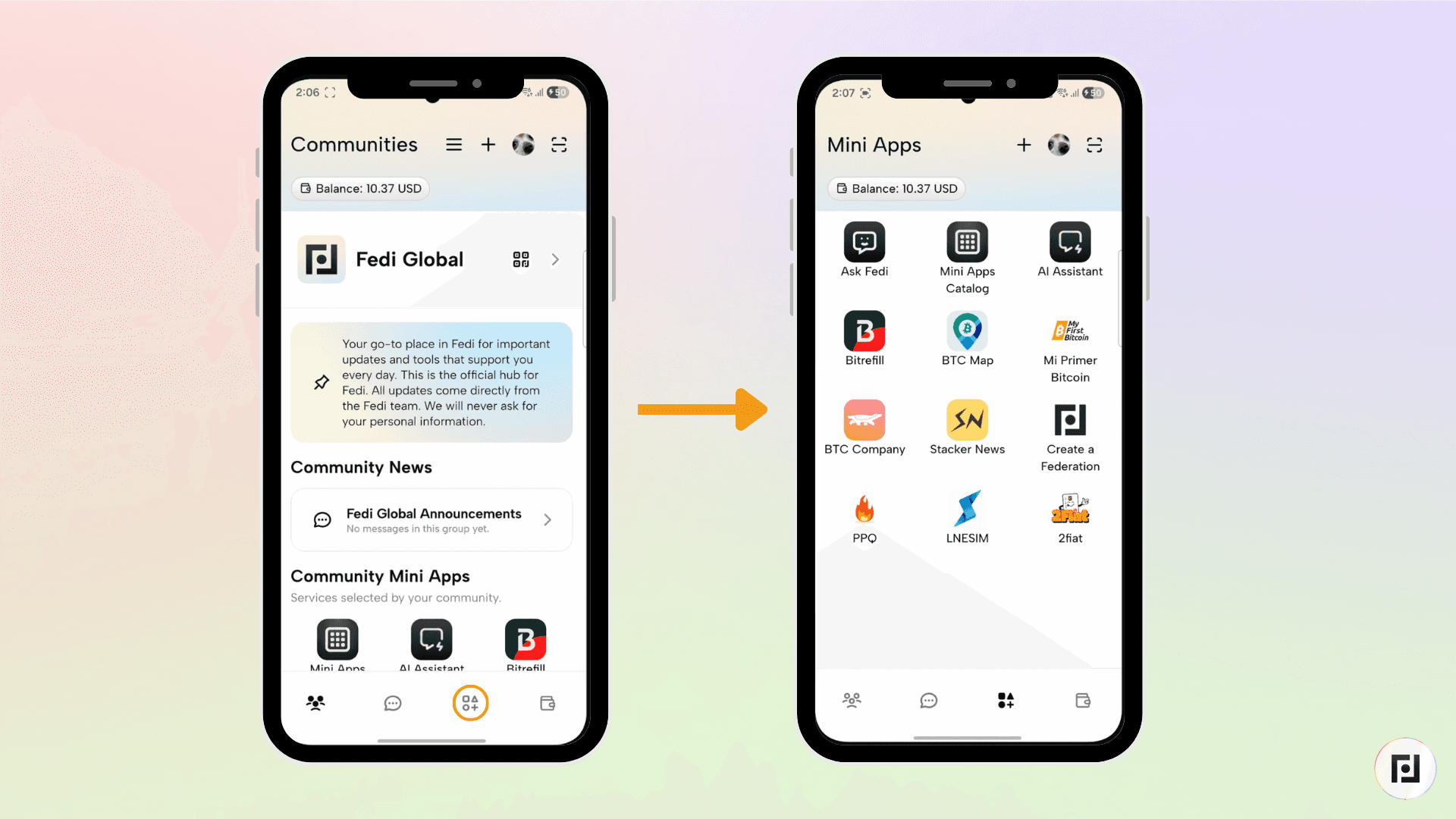
Step 1: Click the Mini Apps button at the bottom-right of your screen to access your personal Mini Apps.
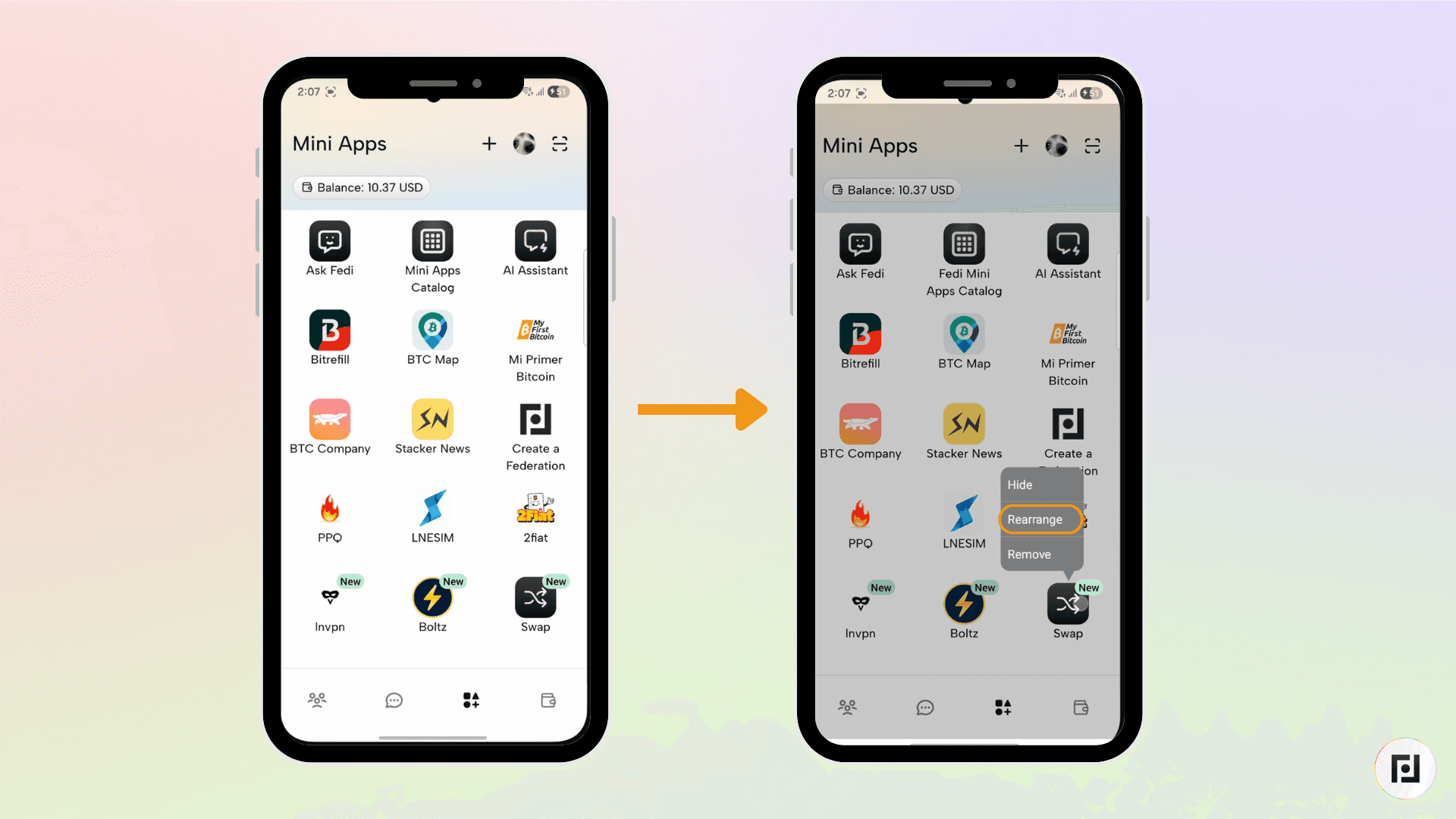
Step 2: Long-press the Mini App you want to remove until you see the pop-up, then click on “Rearrange”.
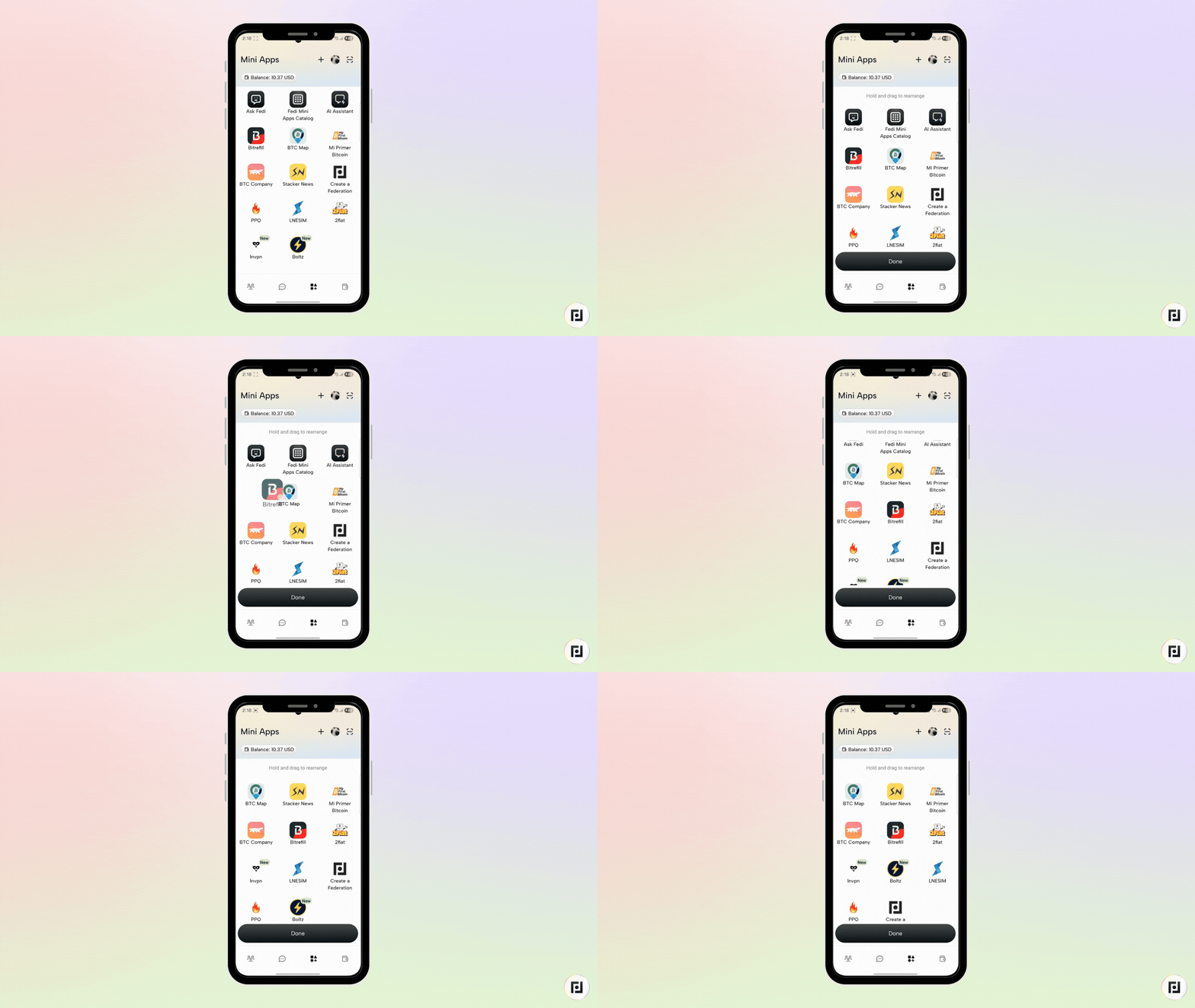
Step 3: Drag and drop the Mini App to your desired location.
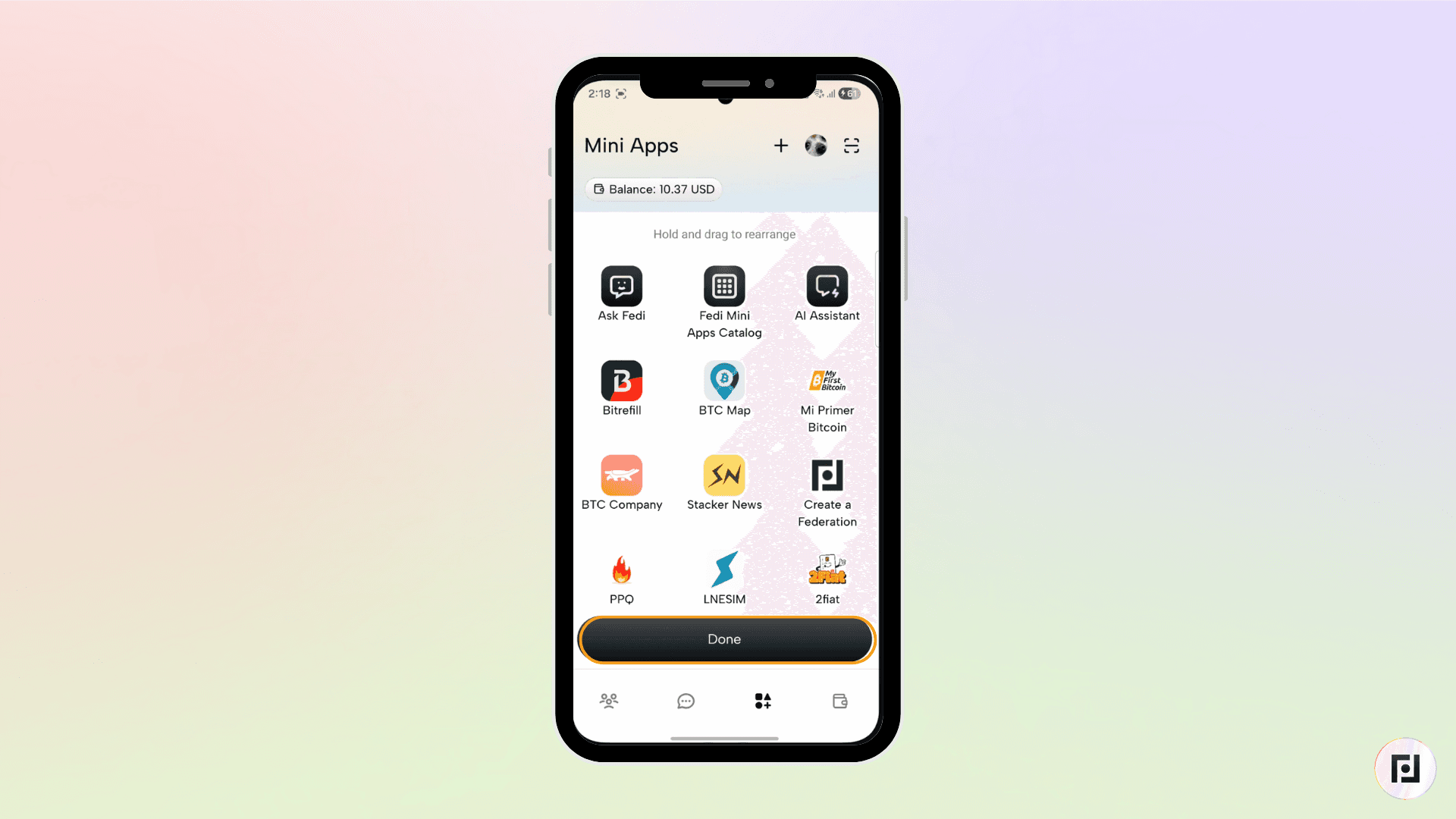
Step 4: Click “Done” to confirm your new arrangement.
Adding Mini Apps
Expand your personal Mini Apps with the web apps you need:

Step 1: Click the Mini Apps button at the bottom-right of your screen to access your personal Mini Apps.
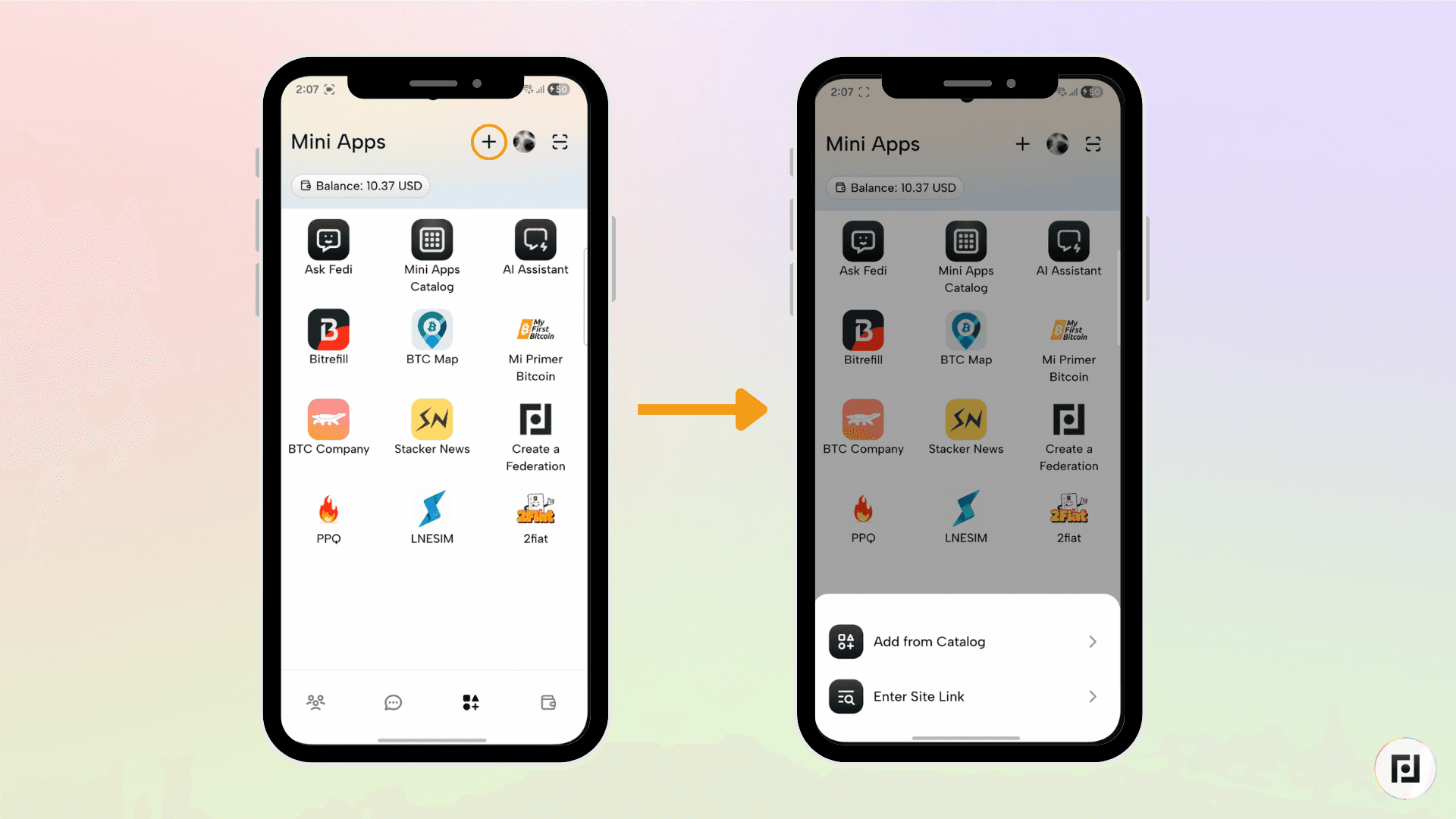
Step 2: Click the plus sign (+) at the top right of the screen.
Step 3: You will see two options: “Add from Catalog” and “Enter Site Link”.
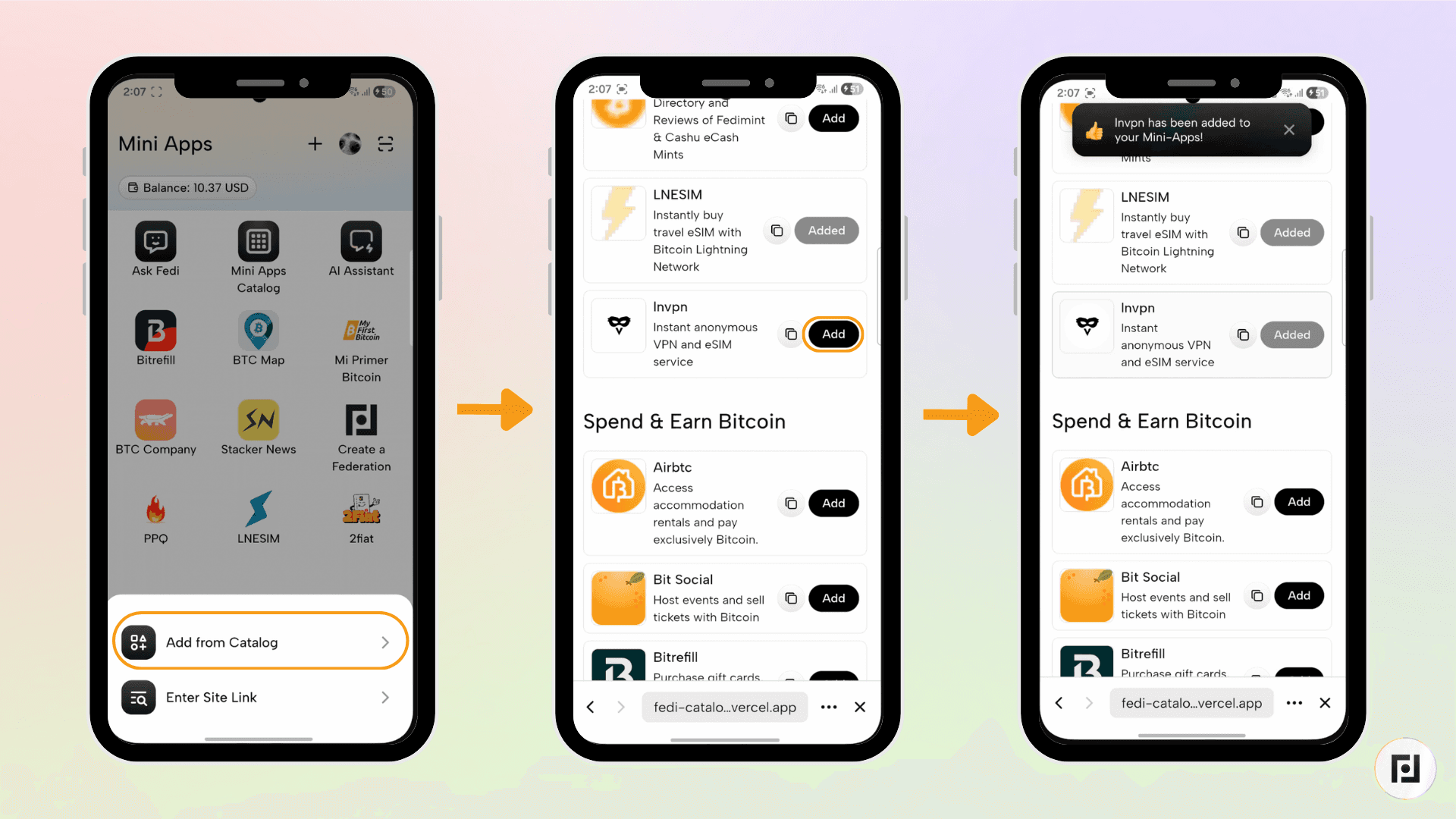
With “Add from Catalog”, you can browse through the Fedi Mini App Catalog and click the “Add” button next to the Mini App of your choice. The Mini App gets automatically added to your list of personal Mini Apps.
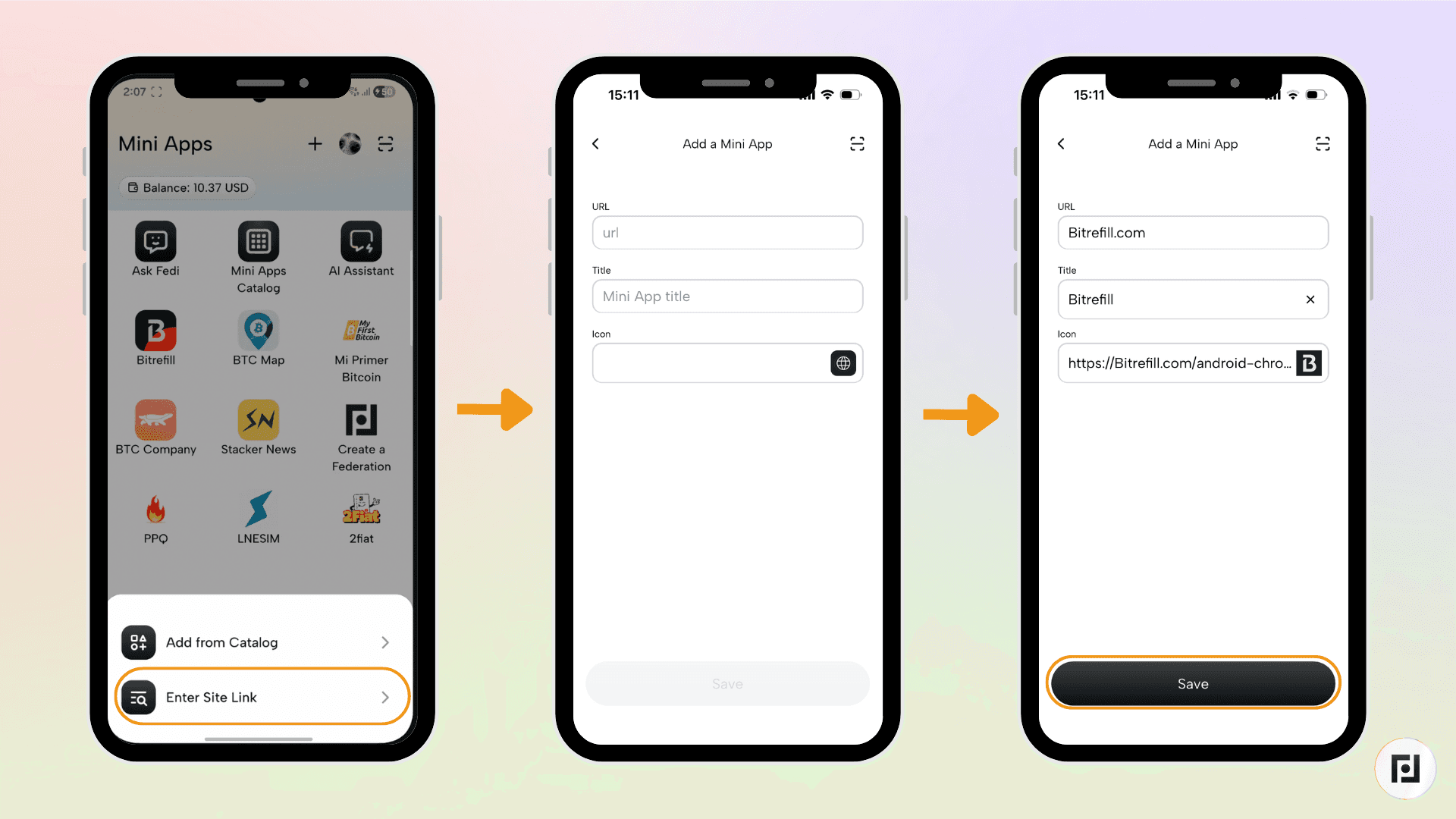
With “Enter Site Link”, you can type the URL of the website you’d like to add as a Mini App. The name and logo of the Mini App autopopulate. You can change the name and logo to further customize the Mini App. Once you’ve added the URL, click “Save”.
Removing Mini Apps
Keep your space focused – remove web apps you don't use:
Step 1: Click the Mini Apps button at the bottom-right of your screen to access your personal Mini Apps.
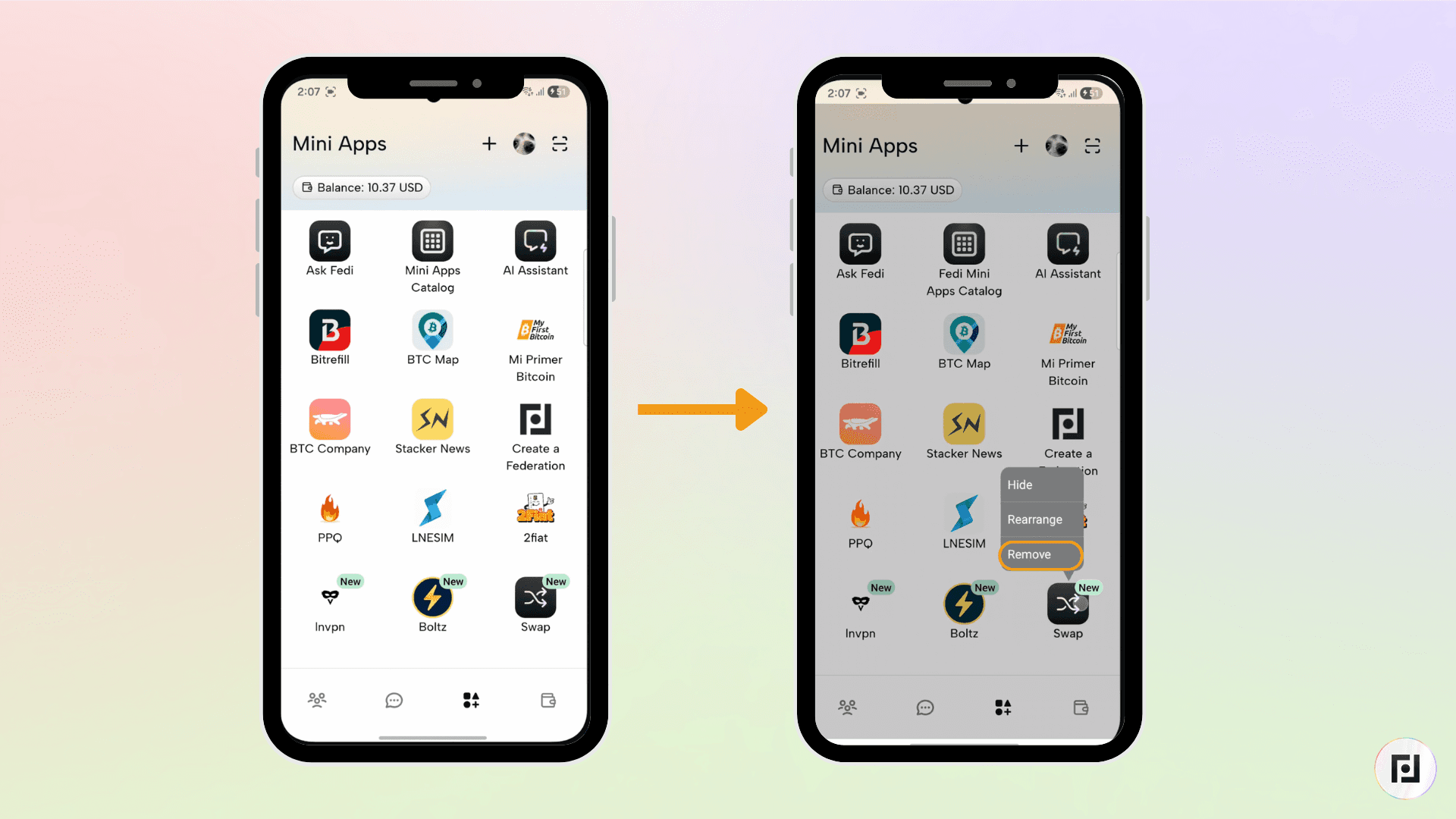
Step 2: Long-press the Mini App you want to remove until you see the pop-up, then click on “Remove”.
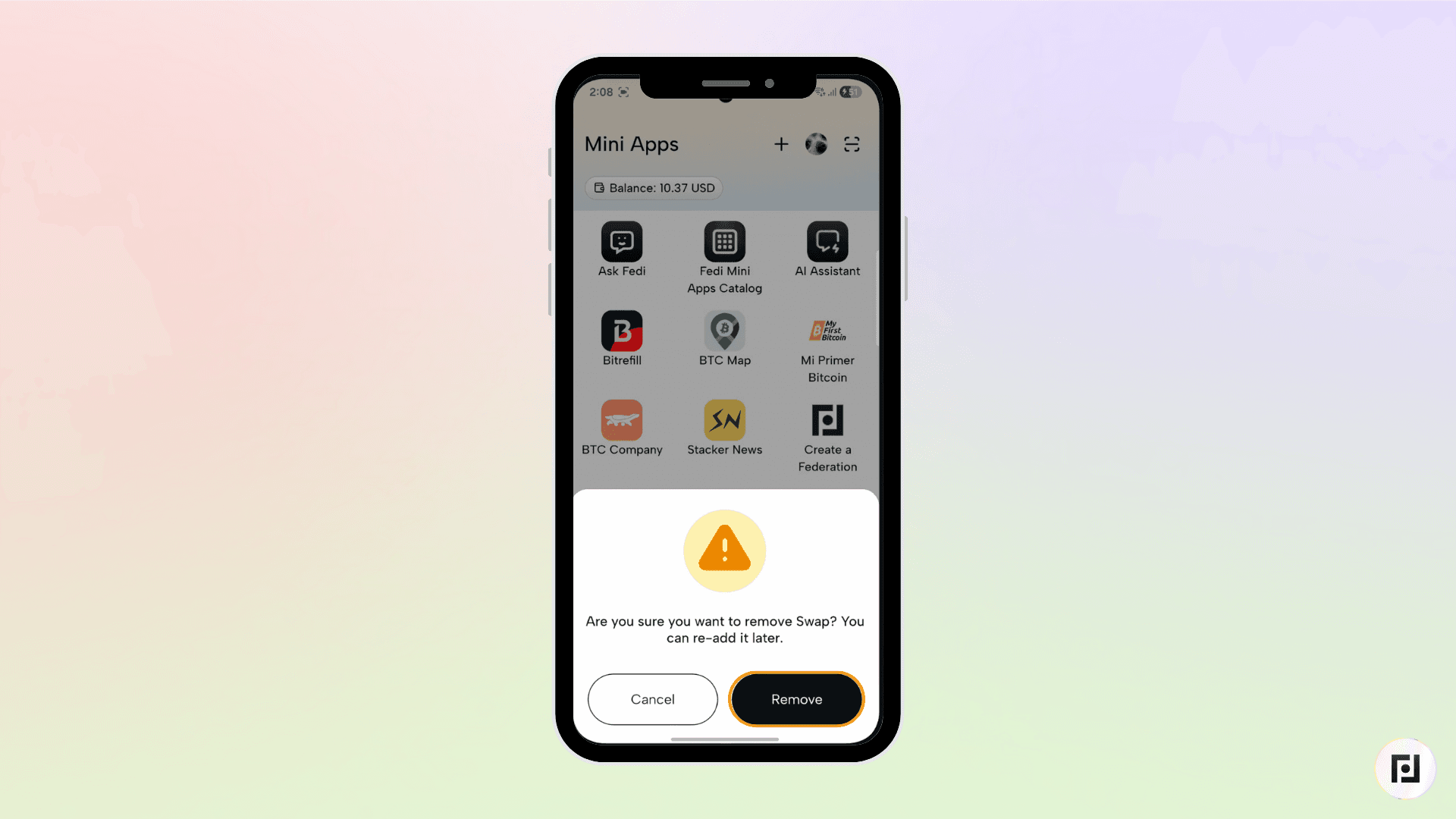
Step 3: Next, click “Remove” to confirm your choice.
Customize Your Mini Apps
Your Fedi experience should work the way you do. With Release 26.1.1, you're in control of your personal space — organize it, customize it, and make it yours.
Upgrade or download Fedi today to customize your experience with Mini Apps.
