April 23, 2026
How to Use Multispend
Multispend is a feature in the Fedi app that lets a group of Fedi users create and manage a shared Stable Balance fund together, which helps groups to manage funds with greater transparency.
Think of it like a group wallet — members can deposit into it, request withdrawals, and track their payments with ease.
No single person controls the funds, as the decisions require a certain threshold of voters in the group to be in agreement on whether or not the funds can be spent.
Before You Start
Make sure you:
Move some of your bitcoin into your Stable Balance wallet in your federation. The Multispend feature only works in conjunction with a Stable Balance wallet, not your bitcoin wallet.
Consider who you would like to invite into your group. Once you have created your Multispend group, you won’t be able to add voters, which are those who choose whether or not to spend funds, or change the voting threshold, which is the amount of votes you need to enable a spend. With that said, you can still add members to the group later and those members can deposit funds and make requests to withdraw funds.
Make sure that those with whom you want to create a Multispend group belong to the same wallet service as you. If they’re not already in the same wallet service, send each member you’d like to include in the group a small payment (i.e., 1 or 2 sats) in a private message. They’ll be added to the wallet service you send the payment from after you do this.
Step 1: Start a Multispend Group
A Multispend group is like an upgraded chat group. So, to enable a Multispend group, you first have to create a chat group. Follow the steps below to first create the group and then enable the Multispend feature:
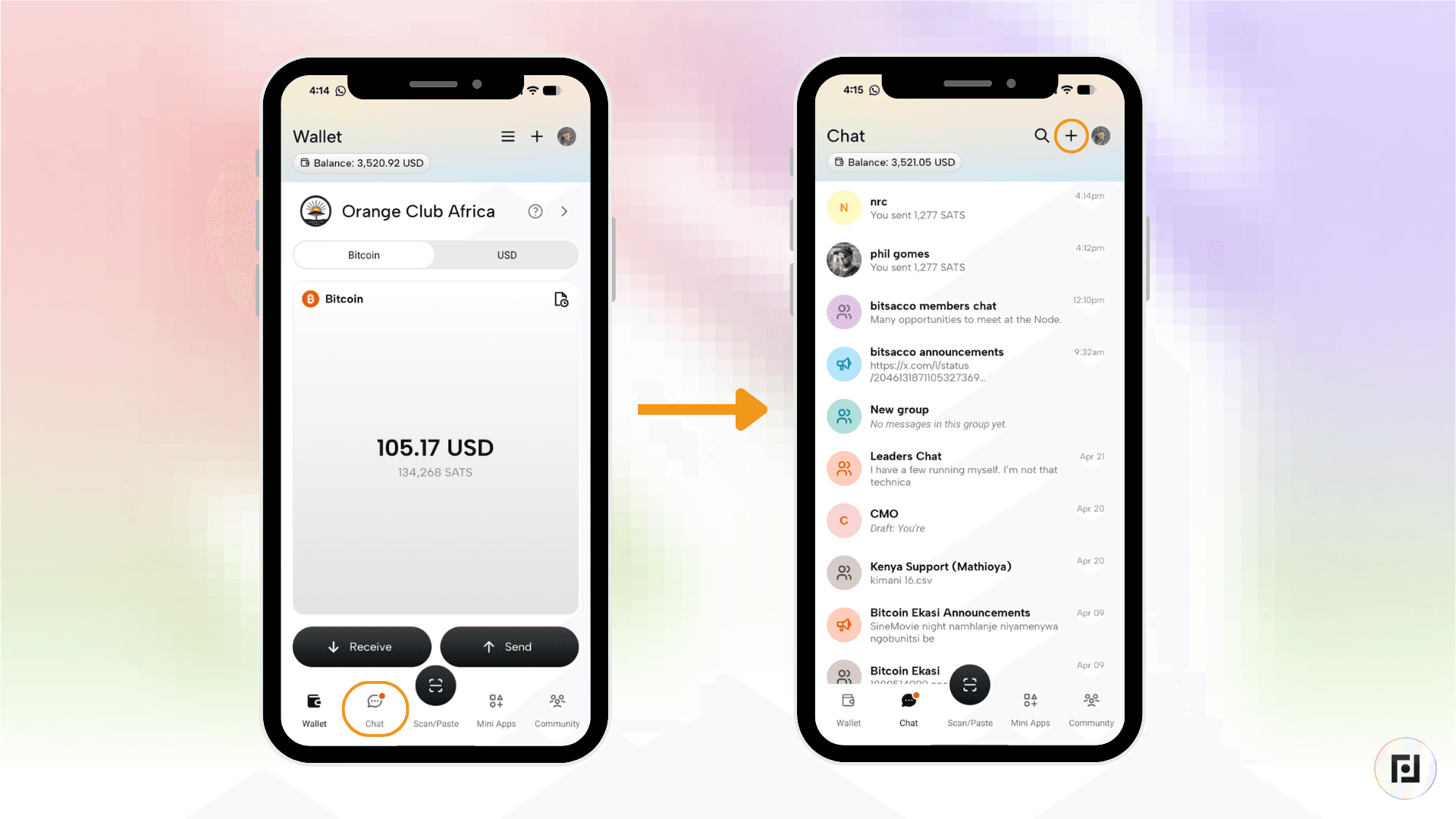
Click on the chat icon at the bottom of the home screen and then click the “+” icon at the top right corner of the screen.
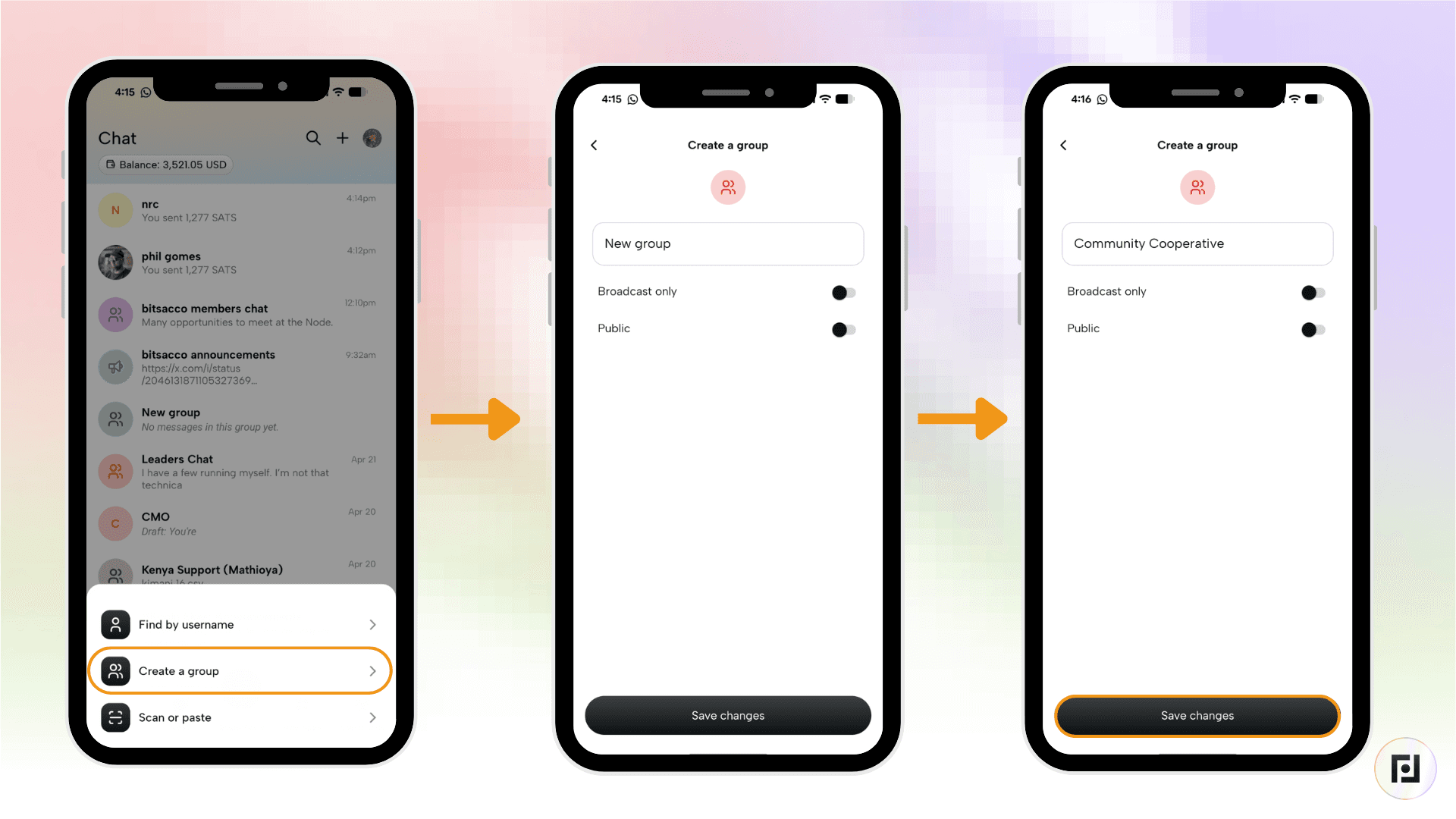
Click “Create a group” from the pop up menu, and name the group in the field that reads “New Group” before clicking the black “Save changes” button. (Leave the “Broadcast only” and “Public” options toggled off.)
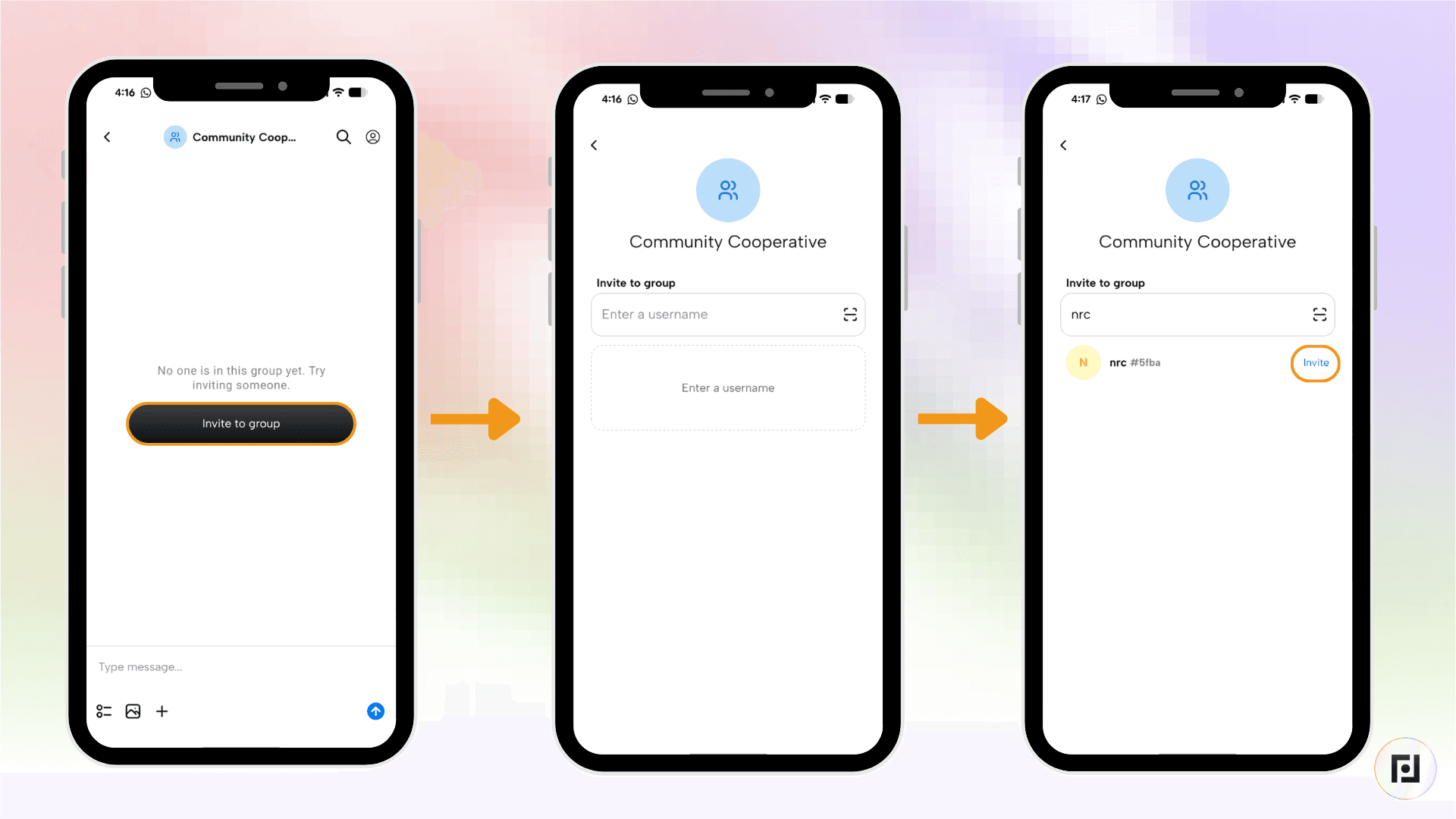
Click the black “Invite to group” button and enter the user names or scan the QR codes of those you’d like to invite to the group.
Once the group has been created, open the group chat and click the name of the group at the top of the screen.
Under chat settings, click “Multispend” and then click on the name of the group chat toward the top of the screen. It will bring you to a “Chat settings” menu.
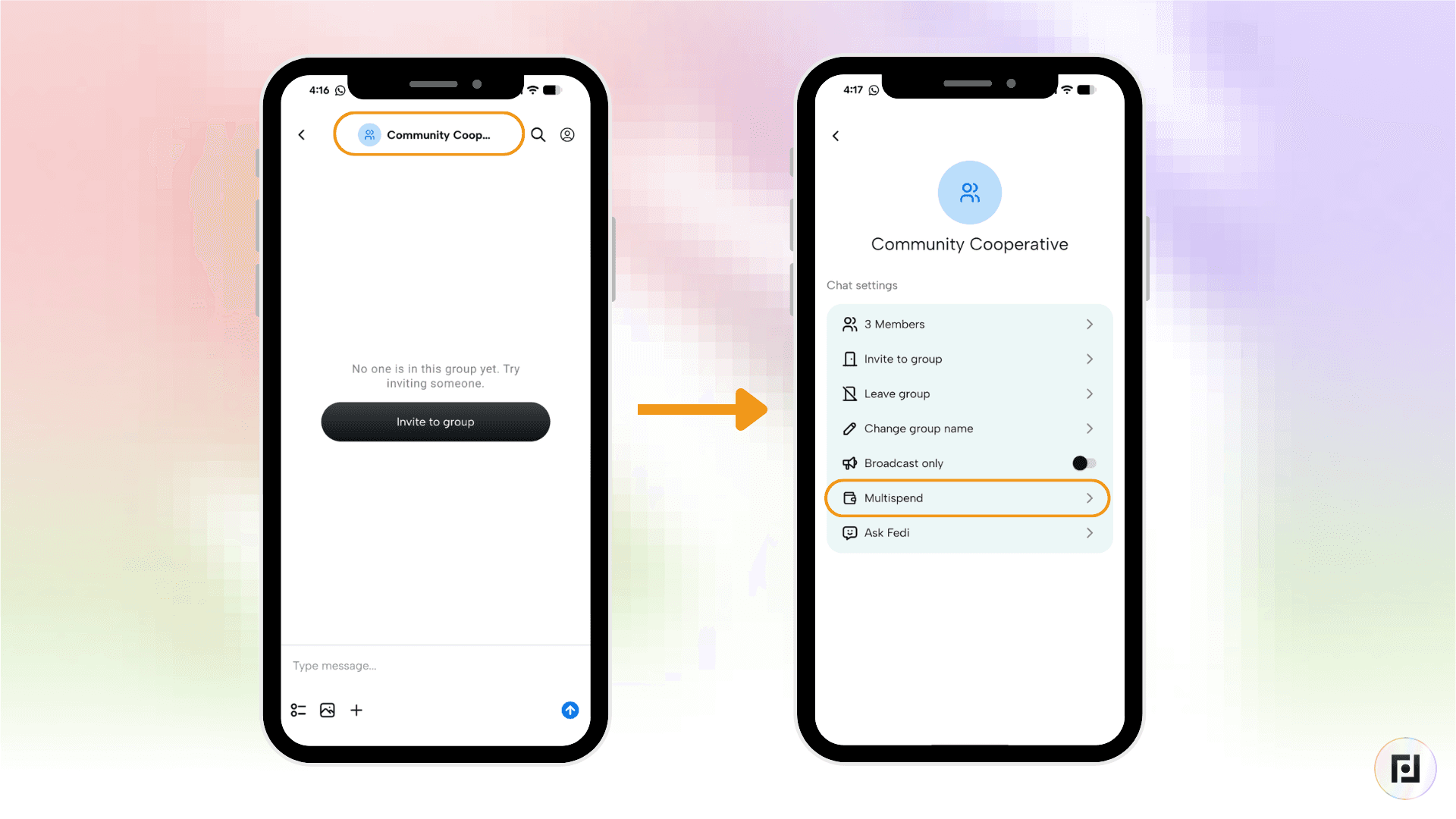
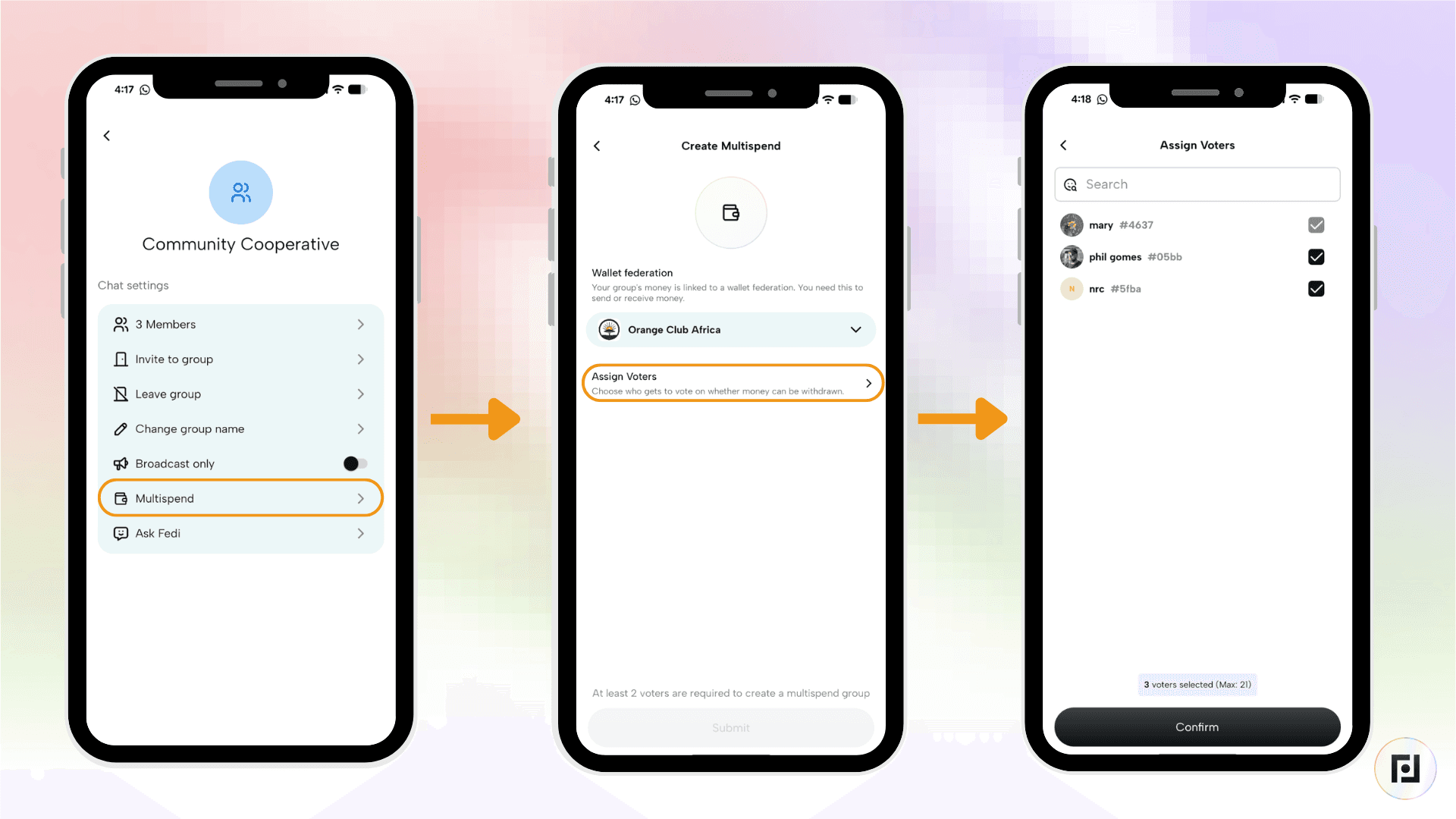
Click the “Multispend” option, and, on the page entitled “Create Multispend”, choose the Federation you’d like to spend from.
Click on “Assign Voters” and select all of the people from the group you’d like to have as voters. The maximum number of voters is 21. Next, click “Confirm”.
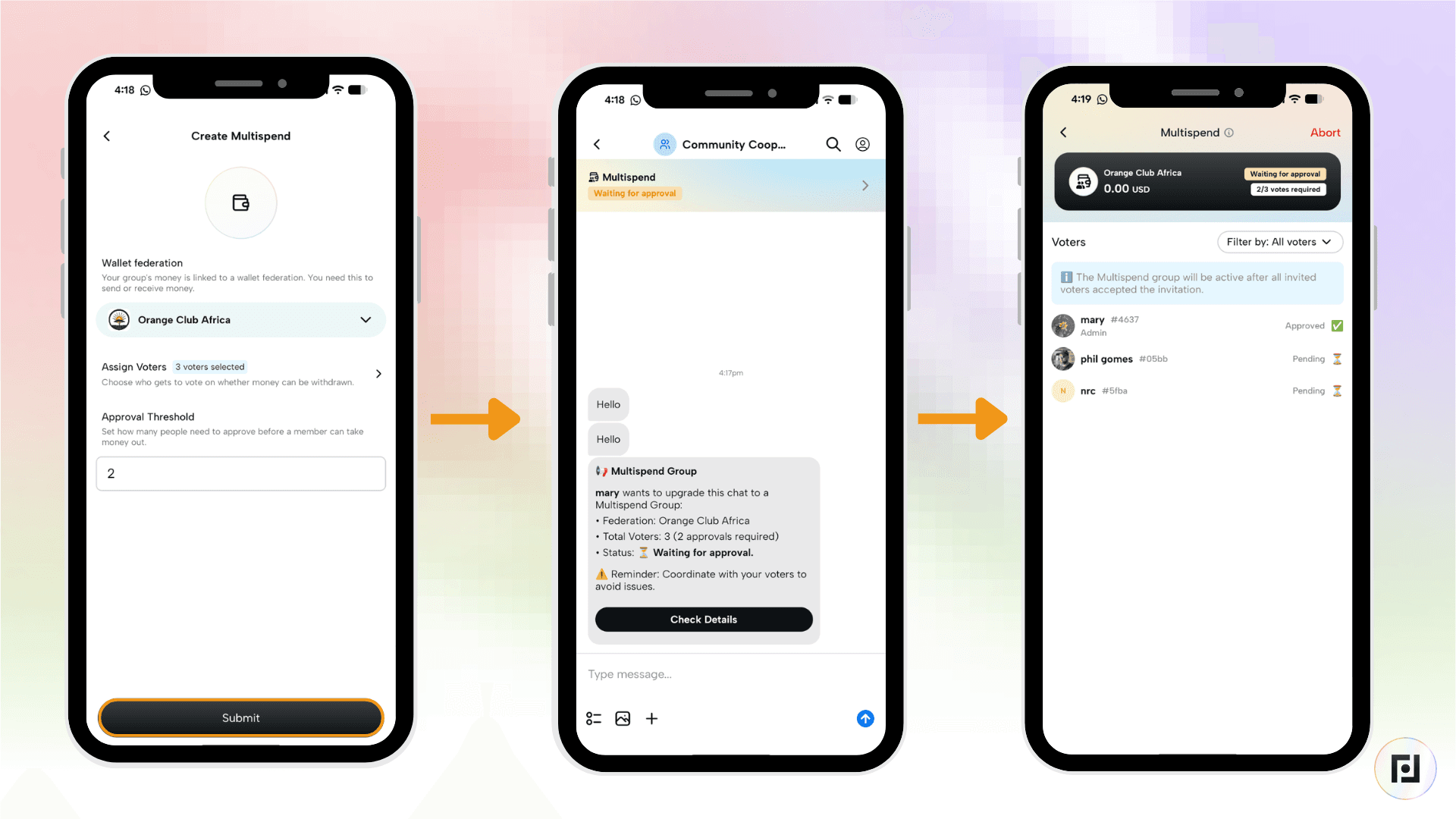
In the “Approval Threshold” field, select the voter threshold and click the black “Submit” button.
You will receive a message in the chat stating that you want to upgrade the chat to a Multispend group. You will have to wait until the other members of the group approve this.
The other group members will have to accept the invitation. Their status will read “Pending” until they do.
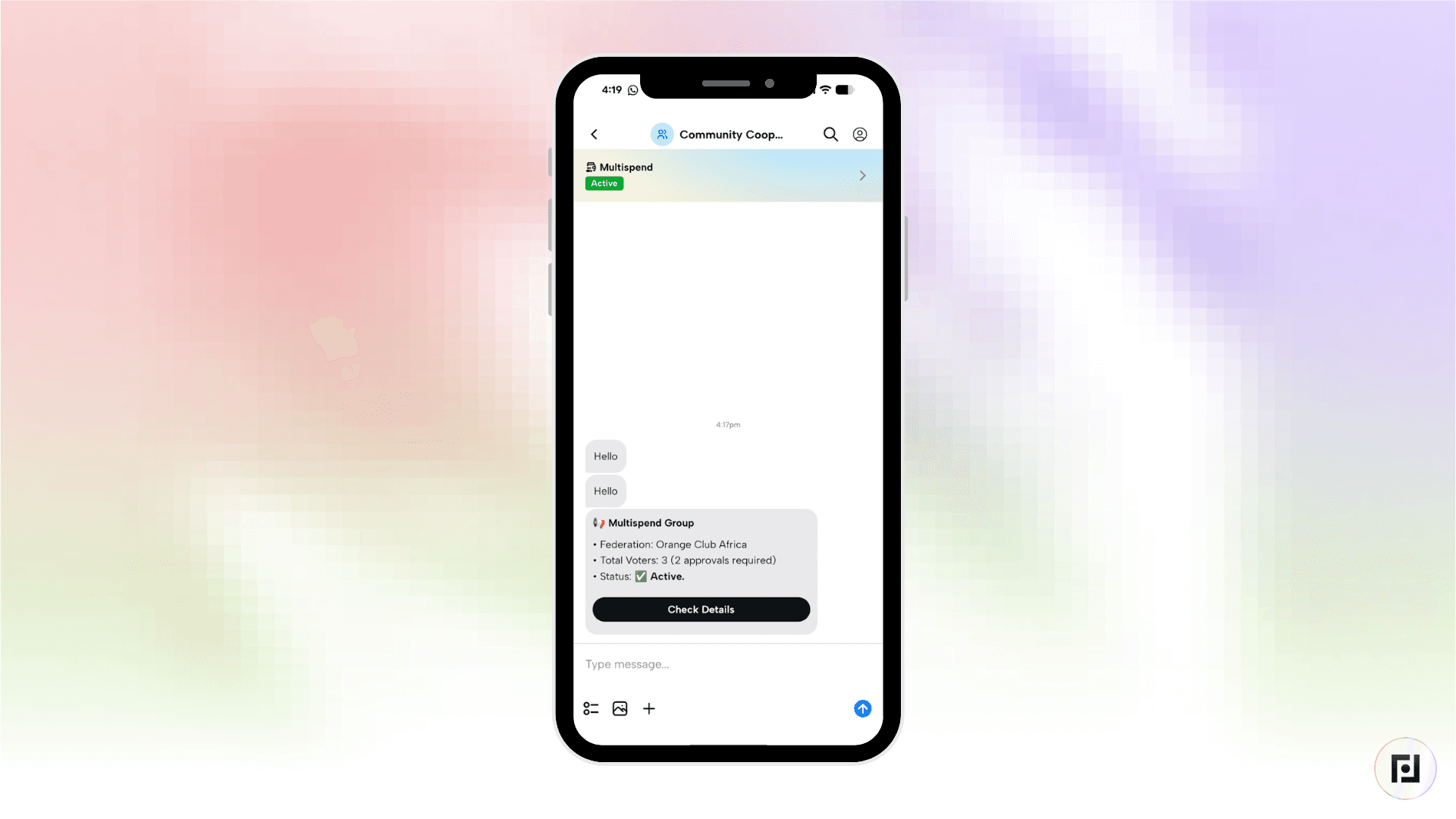
Once the group members have accepted the invitation, you’ll see a green “Active” sign in a bar at the top of the chat. To access the Multispend function, click that bar.
Step 2: Deposit Funds into the Group
Once your group is set up, any member can add funds:
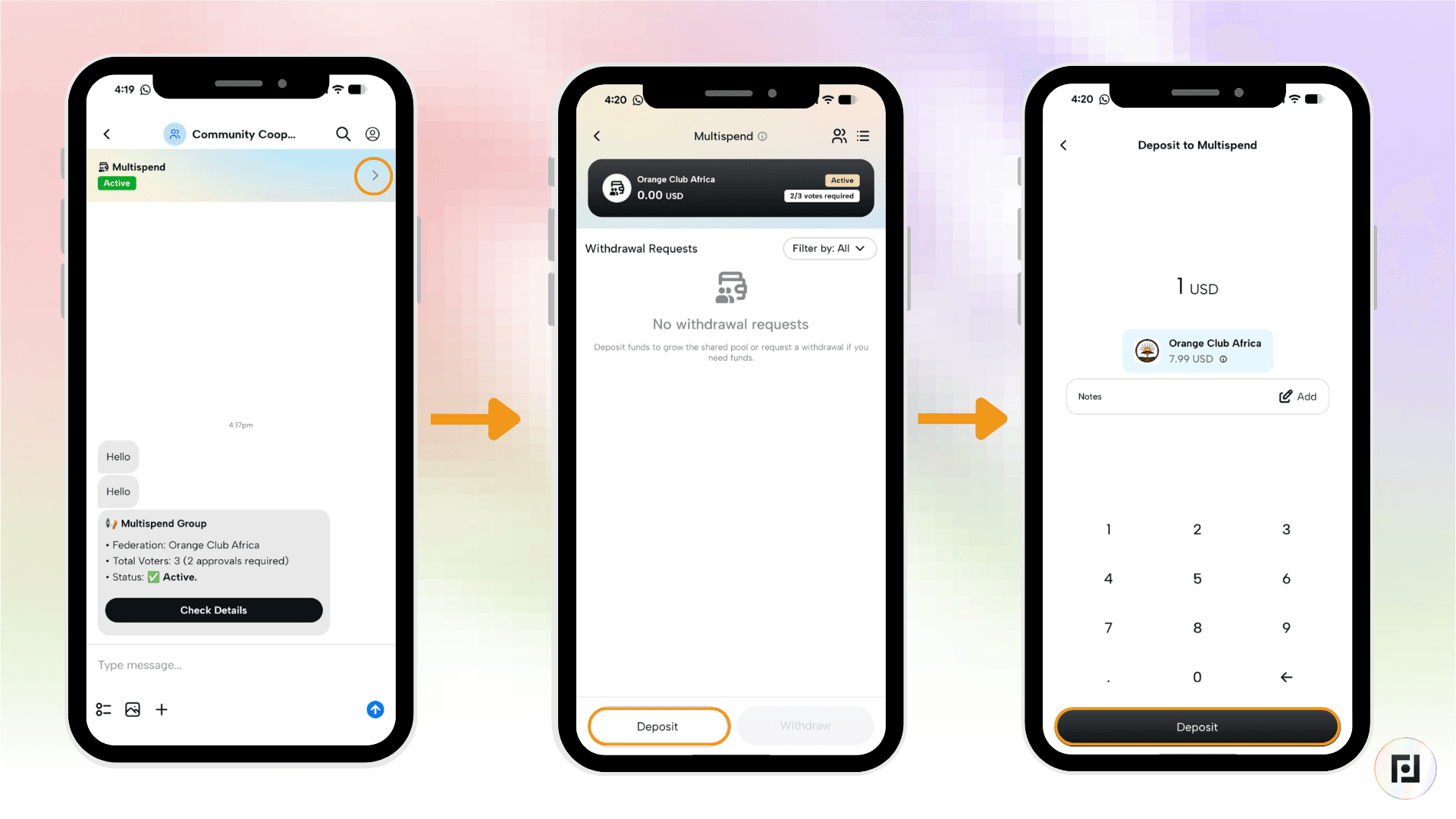
Open the Multispend group from the app.
Tap “Deposit”.
Enter the amount of bitcoin or ecash you want to contribute.
Confirm the transaction.
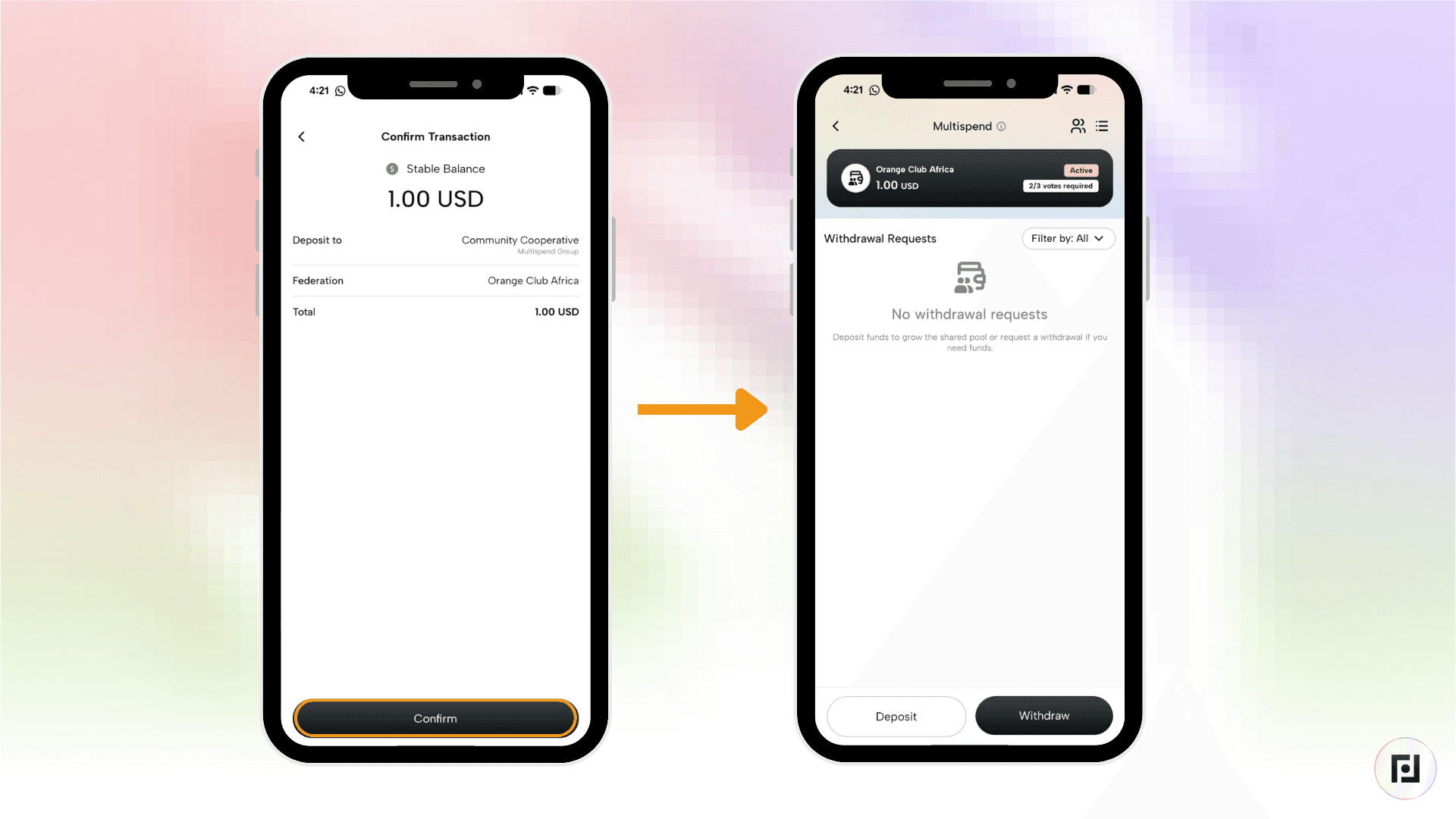
The deposited funds are now held collectively by the group.
Step 3: Request a Withdrawal
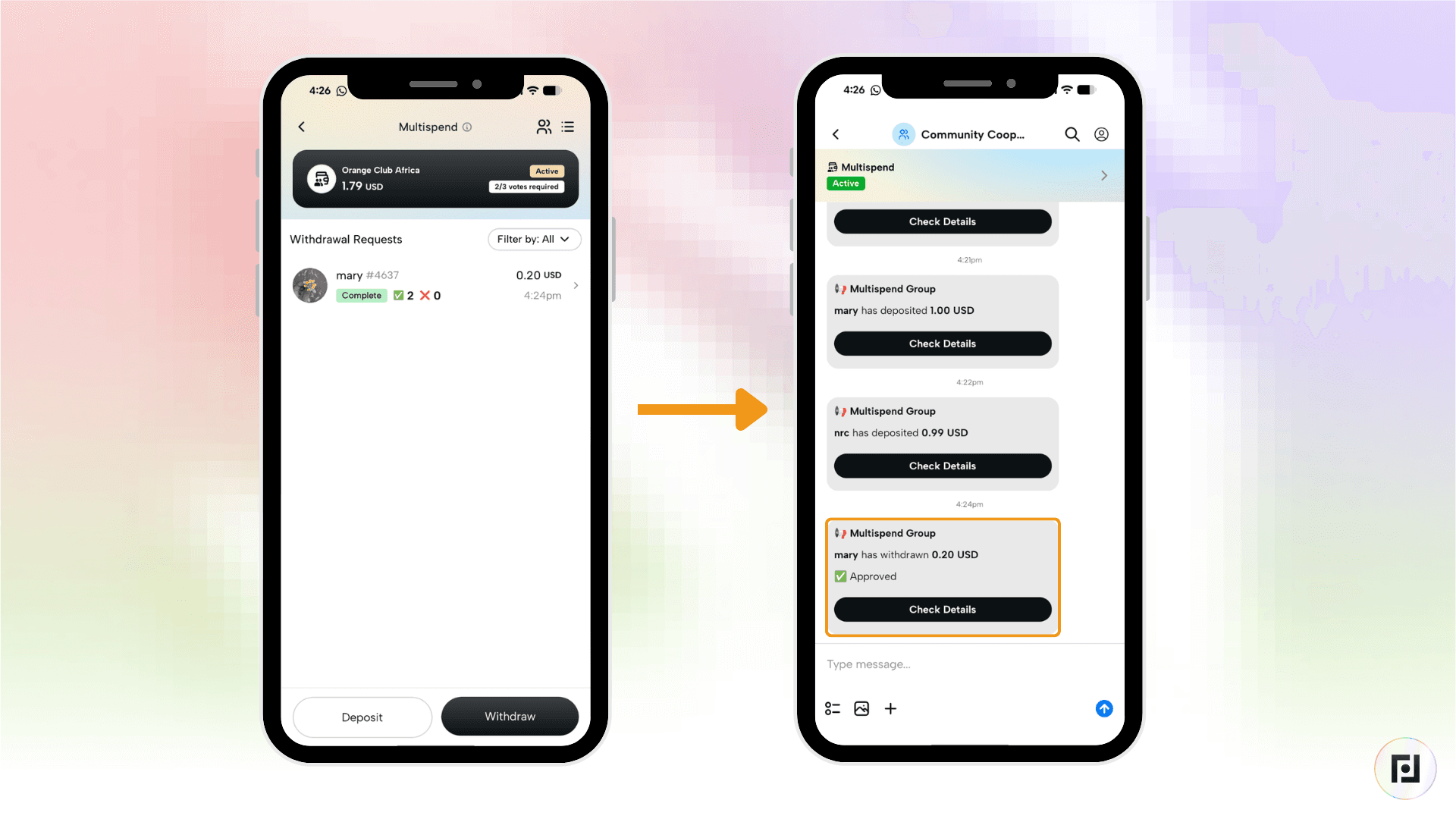
Members cannot spend directly from the Multispend wallet. A member first has to withdraw their funds to their own wallet and then spend them from there. Follow the steps below to withdraw funds from the Multispend wallet to your own wallet:
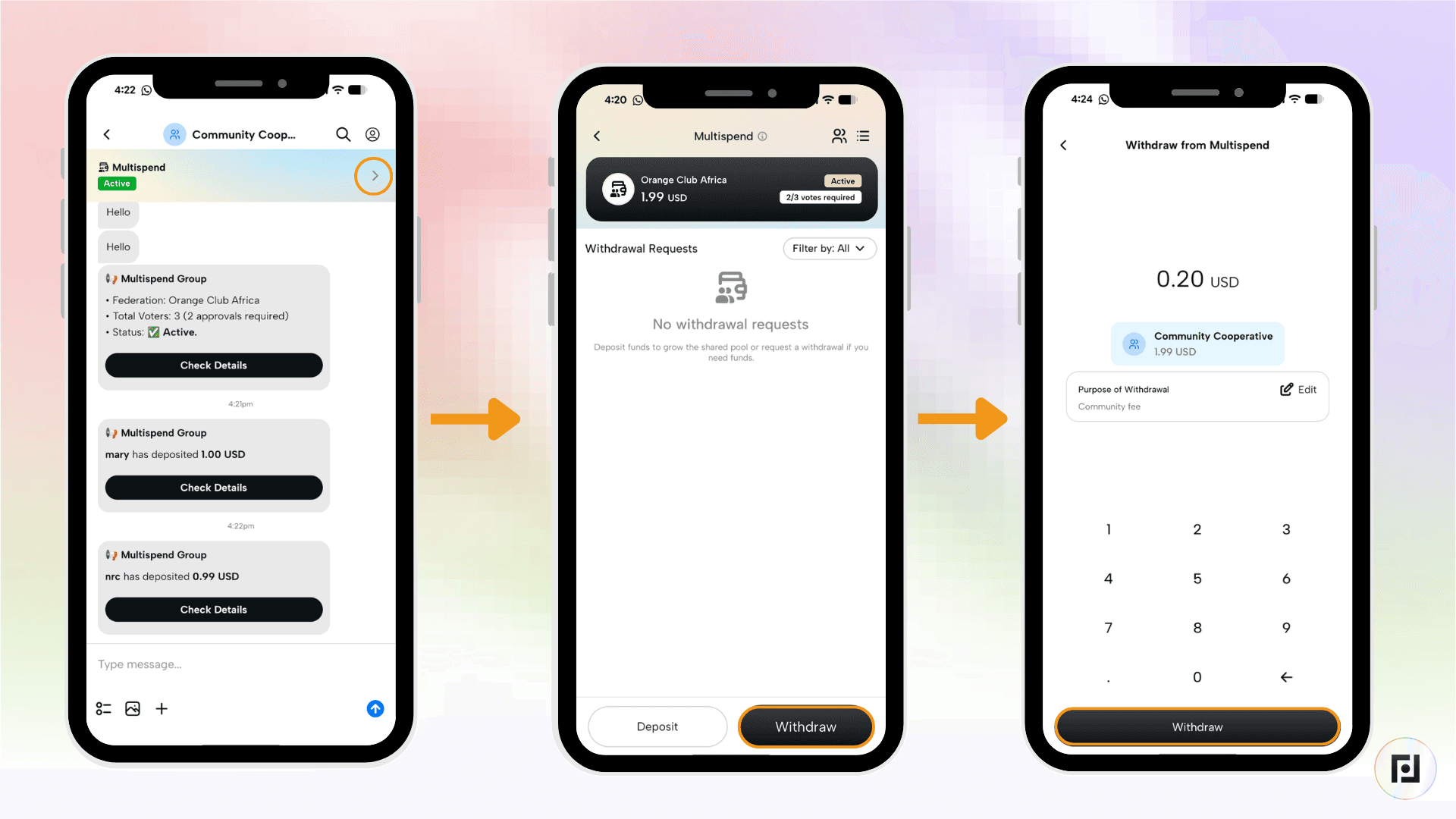
Open the Multispend group.
Tap the black “Withdraw” button at the bottom of the screen.
Enter the amount you'd like to withdraw and optionally add a note explaining what it's for.
Submit the request — other group members will be notified.
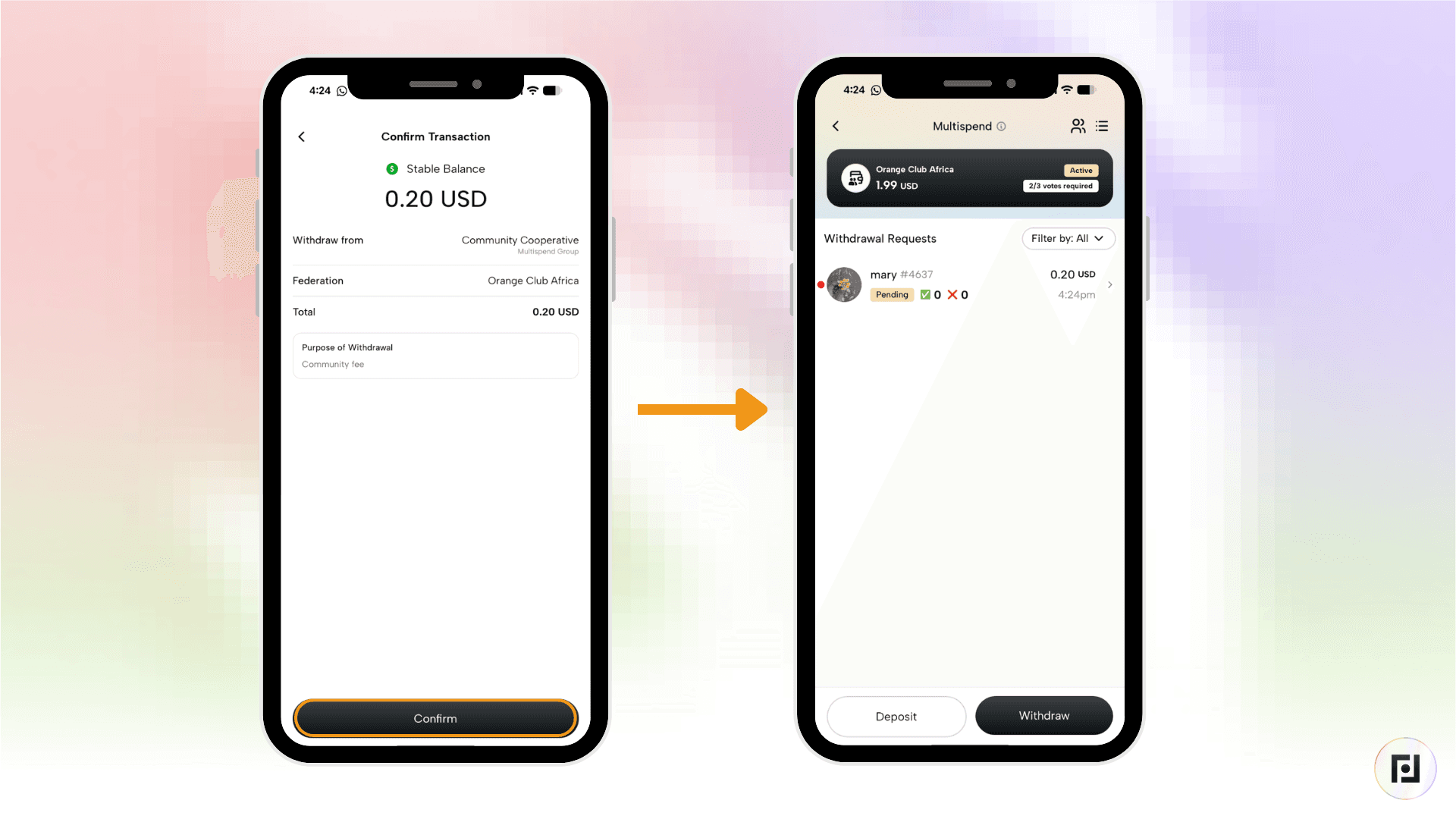
Once members have accepted the request, their status will change from “Pending” to “Accepted” and the withdrawal will occur.
Step 4: Vote on a Withdrawal Request
When another member requests a withdrawal, you'll need to approve or reject it:
You'll receive a notification in the app about the pending request.
Open the Multispend group and find the request under “Pending”.
Review the amount and any notes from the requester.
Tap “Approve” or “Reject”.
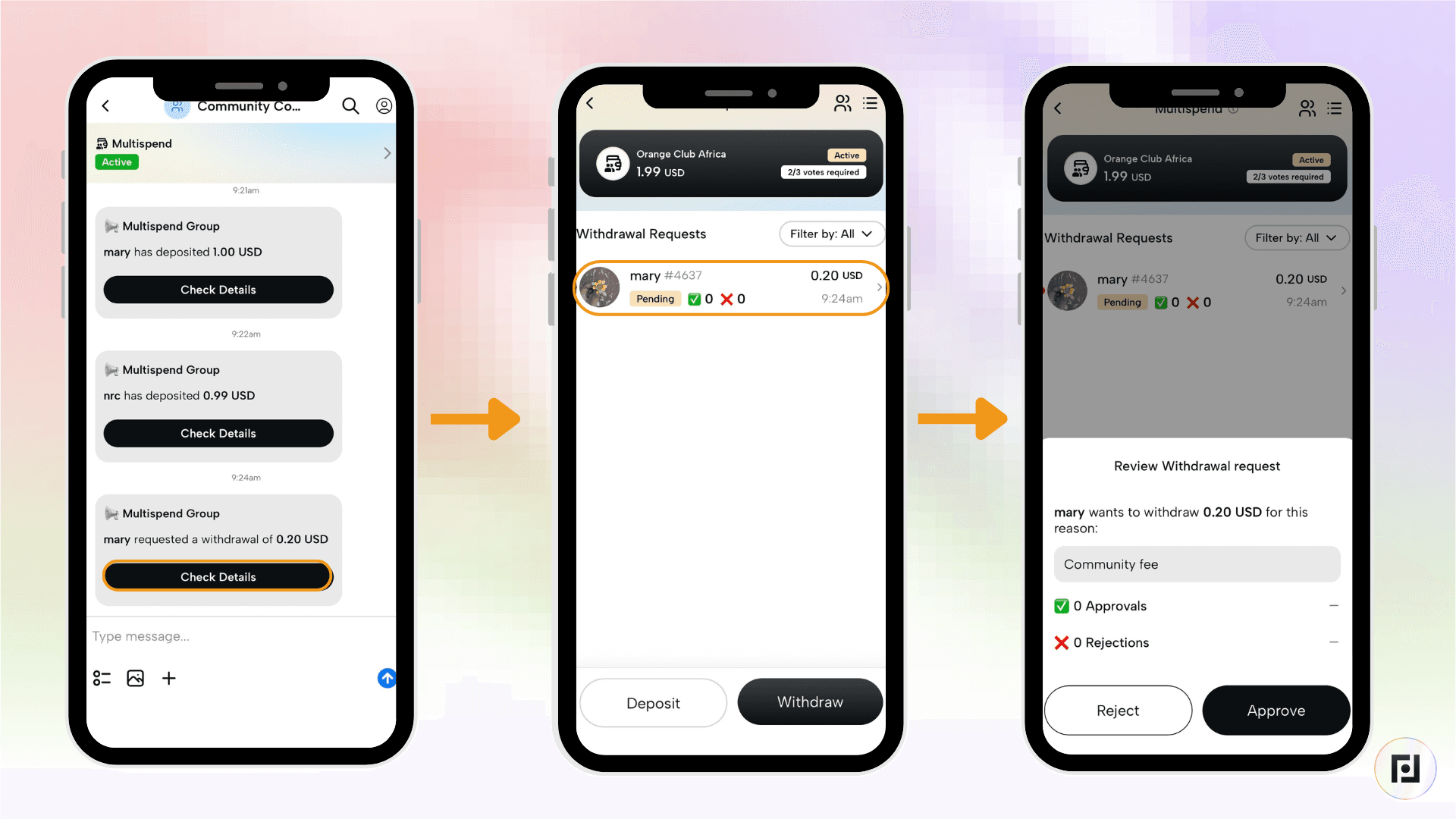
Once enough members approve (based on the group's required threshold), the withdrawal is processed automatically. If the threshold isn't met, the funds remain in the group.
Benefits of Multispend
There are a number of benefits to the multispend feature of Fedi, including:
Transparency: All members can see group activity, which keeps spending accountable.
Auditability: The history of transactions made via the Multispend can be downloaded for accounting purposes.
Privacy: Guardians managing the underlying federation cannot see individual members' balances or personal transaction history.
Communication: It helps to discuss withdrawal requests with your group before submitting, so the approval process isn’t contentious.
Stuck request? If a request isn't getting approved, reach out to group members directly, as they may not have seen the notification.
Need More Help?
Visit Fedi's official support center at support.fedi.xyz for the most up-to-date guides, including:
How to deposit into a Multispend group
How to request a withdrawal
How to vote on a withdrawal request
How a Multispend group gets approved
