April 6, 2026
Access Top AI Models without a Subscription with the PPQ Mini App
With the PPQ Mini App on Fedi, you can access dozens of the world's most powerful AI models and only pay only for the inquiries you make versus paying for a subscription.
Plus, with PPQ (short for Pay Per Question), your search information is encrypted, which means they remain private, unlike when you use ChatGPT, Claude or other AI services.
No Subscription Required
With a subscription, your bill stays the same whether you use an AI platform frequently or not so frequently.
With PPQ, you start by paying as little as ten cents to ask your question, and you don’t need to create an account to do this. What is more, PPQ accepts bitcoin, and you can pay over Lightning from your Fedi wallet.
The average PPQ user spends around US$4 a month, and they get access to top models, like those from OpenAI, Anthropic, Google, and Meta. Using PPQ, you can switch between these freely and seamlessly depending on what your task requires.
So, get ready to generate images, create videos, or produce audio transcriptions on a pay-as-you-go basis with PPQ.
Maintaining Your Privacy While Using AI
Another key feature of PPQ is that your AI inquiries remain private.
When you use certain AI platforms directly, these platforms log information about you, whereas this isn’t possible with PPQ because it enables end-to-end encryption where prompts are encrypted within the browser within the Fedi Mini App.
“PPQ is a great place to privately access many different chat, image, and video models on a simple pay-per-use basis,” said Matt Ahlborg, founder and CEO of PPQ.
In this regard, PPQ is a great addition to the Fedi ecosystem, where privacy is at the center of what we do.
How to Add the PPQ Mini App on Fedi
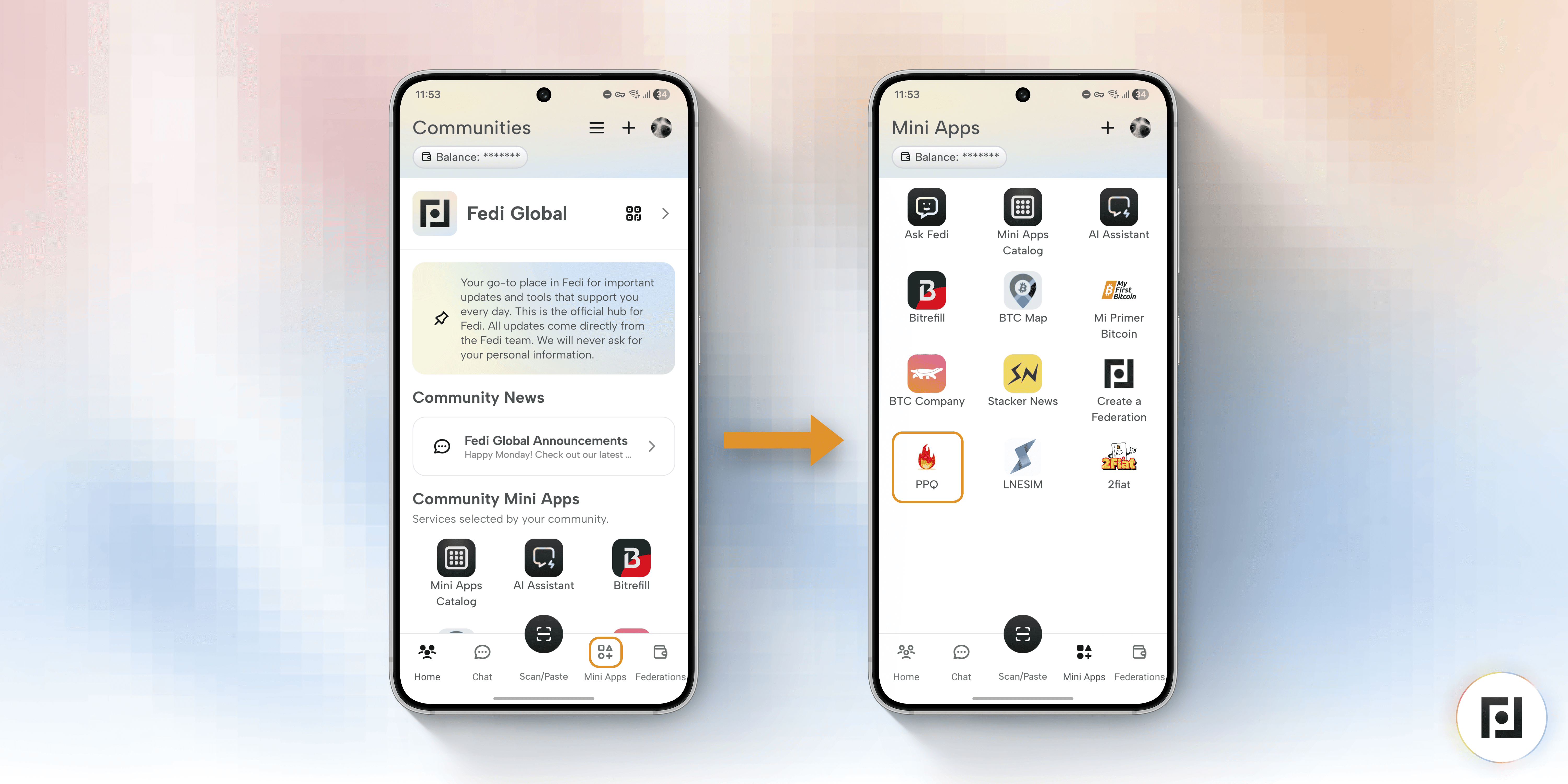
Good news! You don’t need to manually add PPQ as a Mini App. It comes pre-loaded in the Mini Apps section.
How to Use PPQ on Fedi
Step 1: Open the PPQ Mini App from your Mini Apps screen.
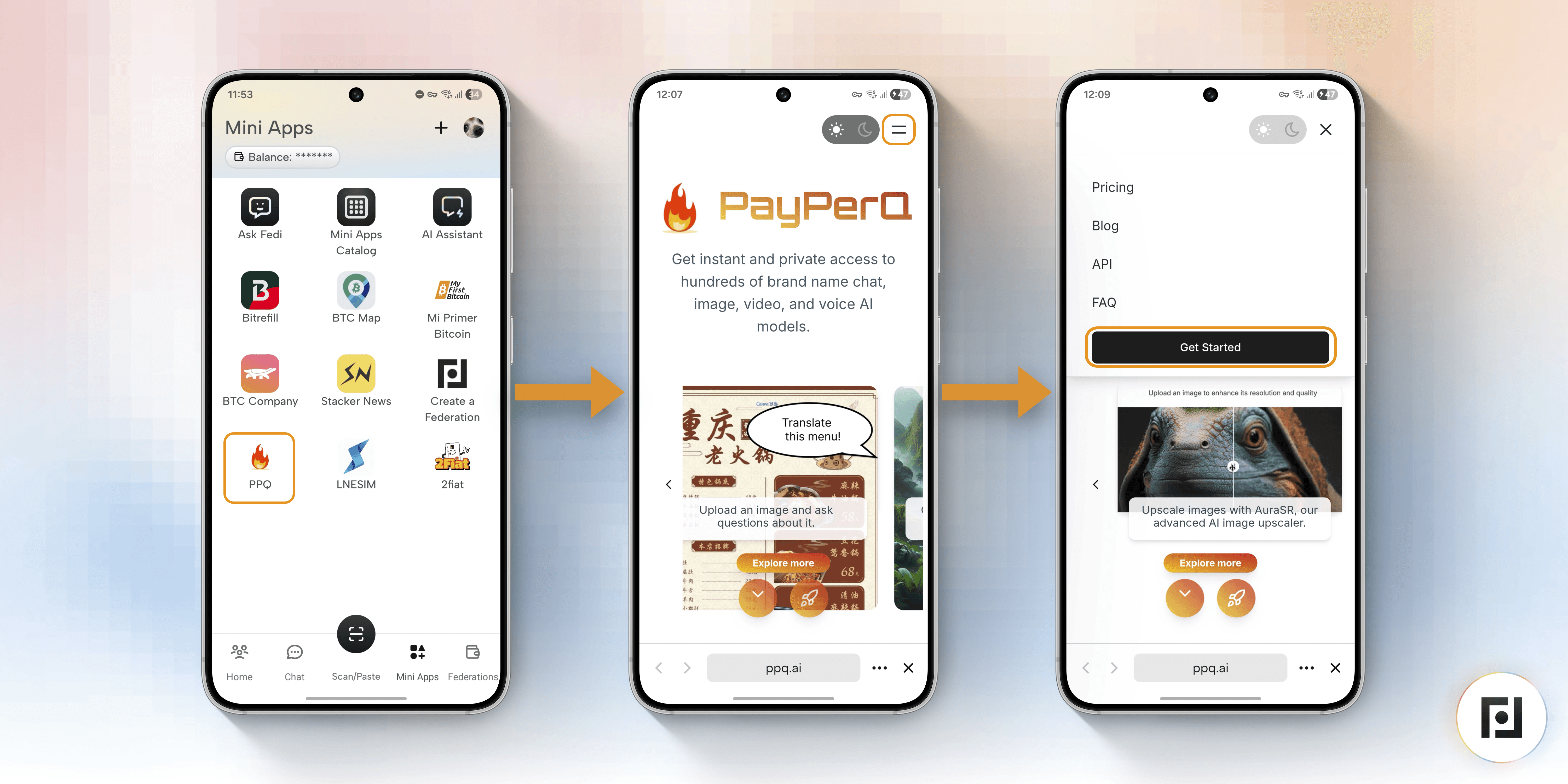
Step 2: Click on the two parallel lines in the top right corner of the screen.
Step 3: Click the black “Get Started” button.
Step 4: Click the button showing $0.00 in the top right corner of the screen.
Step 5: Click the “Bitcoin Accepted Here” button.
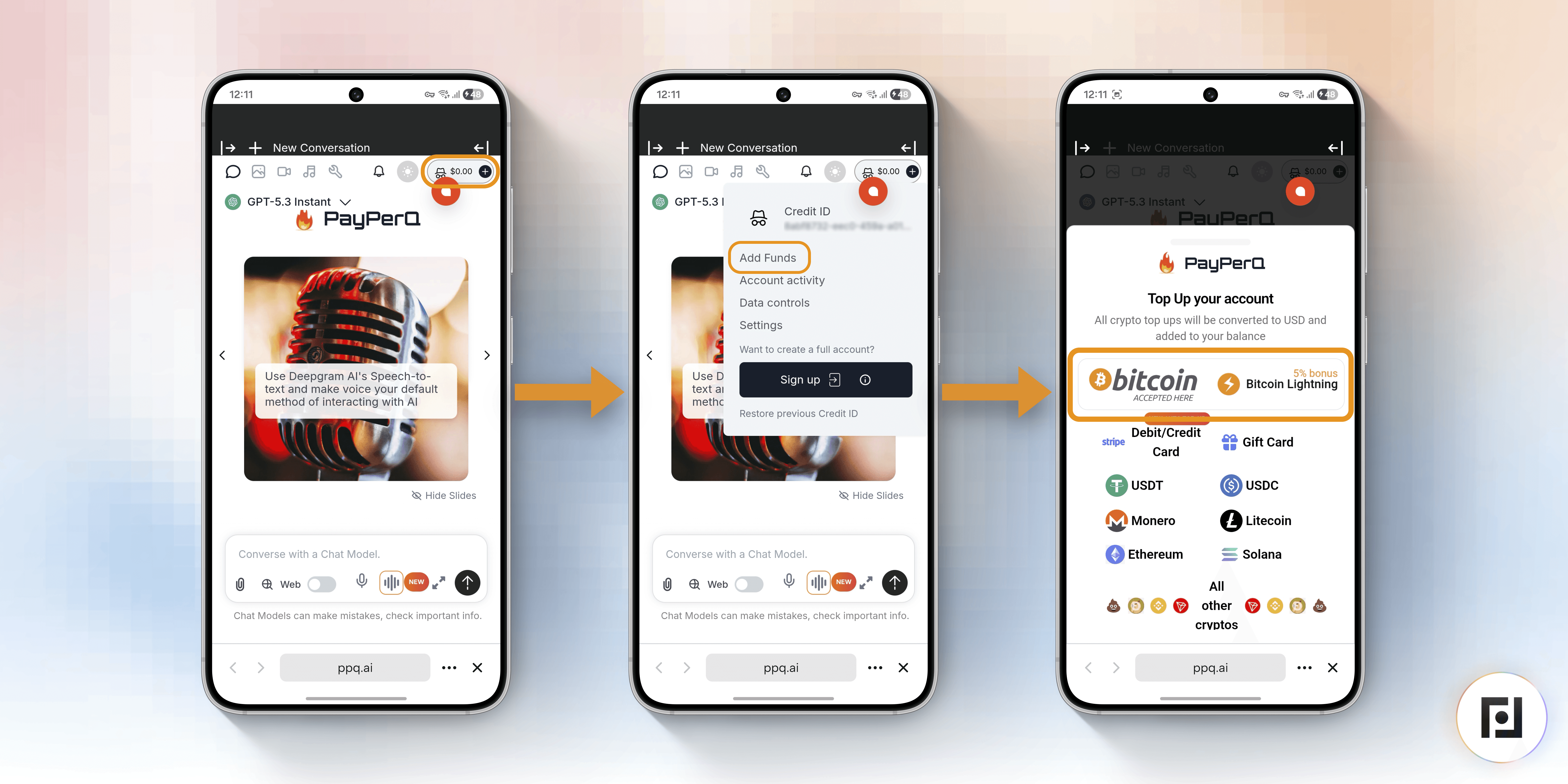
Step 6: Click the “Bitcoin Lightning” button.
Step 7: Save your Credit ID in a safe place and then click the “I understand” button.
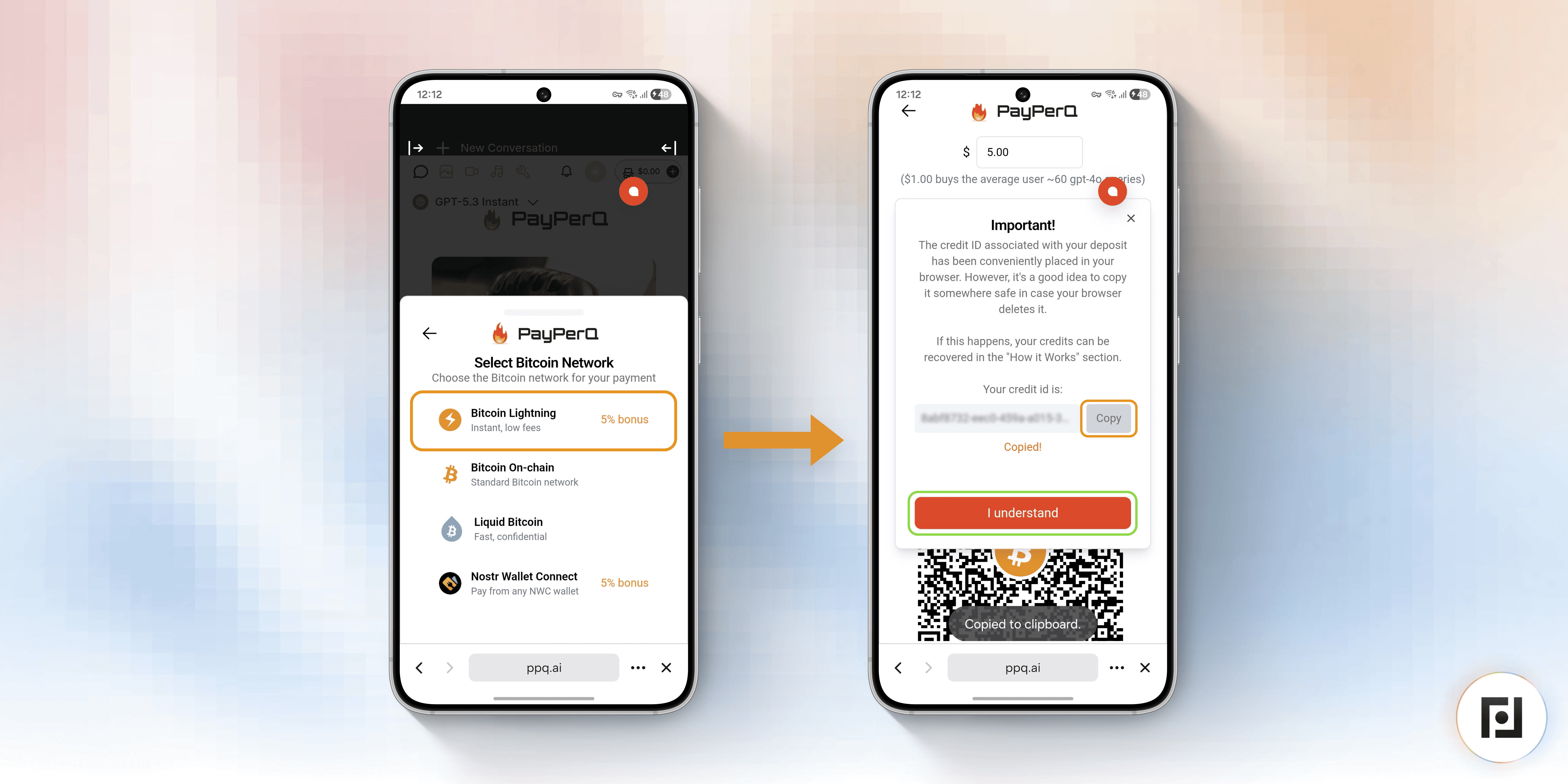
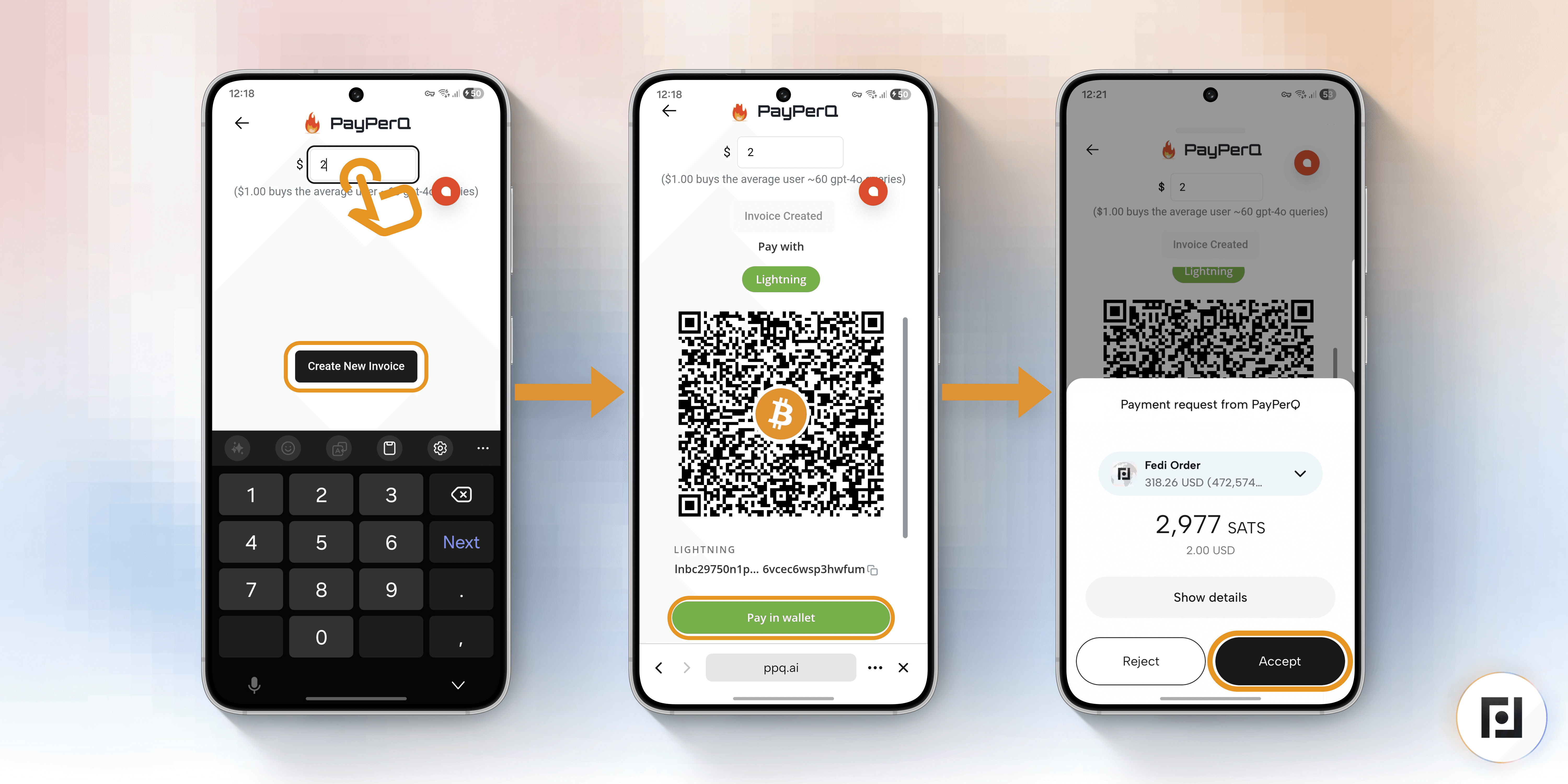
Step 8: Select the dollar amount you’d like to spend at the top of the screen.
Step 9: Click the “Create New Invoice” button.
Step 10: Click the green “Pay in wallet” button or copy the Lightning invoice to paste in your Fedi wallet.
Step 11: Confirm the payment with your Fedi wallet.
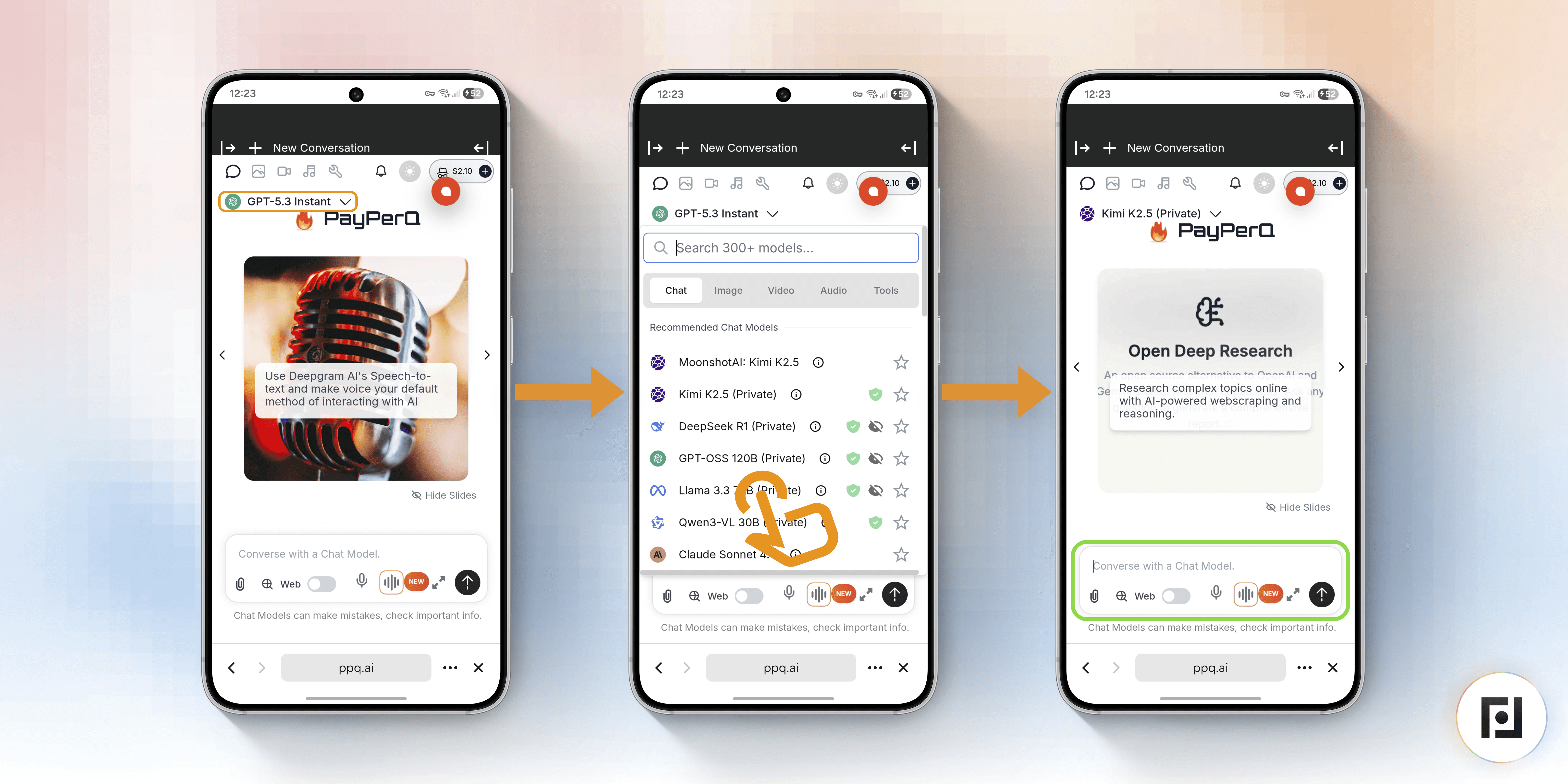
Step 12: Select the model you’d like to use at the top left corner of the screen.
Step 13: Make your query in the bar where it reads “Converse with a Chat Model”